# BookStack

# Installation

https://www.bookstackapp.com/docs/admin/installation/

# BookStack Configuration

## Environment Settings

Bookstack stores custom settings file `.env` within its active directory, `/var/www/bookstack/` this is where you will go to modify most settings within your bookstack instance. Check the GitHub link below for a complete list of environment variables on the active release branch.  

[https://github.com/BookStackApp/BookStack/blob/release/.env.example.complete](https://github.com/BookStackApp/BookStack/blob/release/.env.example.complete)

<p class="callout danger"><code>APP_URL</code> environment variable <span style="text-decoration: underline;">must</span> lead with <code>http://</code> or <code>https://</code> and end with <code>/</code>  
such as <code>http://website.com/</code> or <code>https://website.com/</code>.
Any form of the following will cause URL redirect issues:
<code>www.website.com</code>, <code>website.com</code> or <code>subdomain.website.com</code>
</p>

### Mail Setup

To allow BookStacks to send mail using [Google's free mail server](https://www.digitalocean.com/community/tutorials/how-to-use-google-s-smtp-server), ensure that your .env settings within your bookstack directory ( `/var/www/bookstack/.env` ) contains the below.

    # The below url has to be set if using social auth options
    # or if you are not using BookStack at the root path of your domain.
    APP_URL=https://knoats.com/

    #Mailsettings
    MAIL_DRIVER=smtp
    MAIL_HOST=smtp.gmail.com
    MAIL_PORT=587
    MAIL_USERNAME=email@gmail.com
    MAIL_PASSWORD=password
    MAIL_ENCRYPTION=tls
    MAIL_FROM=email@gmail.com

Now head over to [Configure Postfix](https://www.knoats.com/books/linux-admin/page/configure-postfix) to setup a Mail Transfer Agent (MTA) on your host. If you have a firewall, be sure you open the port you enter for `MAIL_PORT`. 

Once that's done, test sending mail with the command below, where `emailuser@example.com` is the destination email address - 

```bash
echo "This email confirms that Postfix is working" | mail -s "Testing Posfix" emailuser@example.com 
```

You must have a valid HTTPS certificate configured, if you are using DigitalOcean. See the link below.  
[DO - DNS Records](https://www.digitalocean.com/docs/networking/dns/how-to/manage-records/)\
[Knoats - NGINX SSL Configuration](https://www.knoats.com/link/30#bkmrk-configure-ssl)

As a final step, we can use BookStack's builtin mail test within the Settings->Maintenance panel -

[![](https://www.knoats.com/uploads/images/gallery/2020-06/scaled-1680-/image-1591314992713.png)](https://www.knoats.com/uploads/images/gallery/2020-06/image-1591314992713.png)

Once we click the button to send a test email, we should see something like the below

[![](https://www.knoats.com/uploads/images/gallery/2020-06/scaled-1680-/image-1591315123790.png)](https://www.knoats.com/uploads/images/gallery/2020-06/image-1591315123790.png)

# Bookstack Using Docker Compose

#### Creating a Bookstack on localhost

A Bookstack can be easily ran with docker using the default `.env` settings and tested through visiting `localhost` in a web browser. Follow the Docker Installation Instructions and create a docker-compose.yml configuration that matches the format on the [Linuxserver.io Repository](https://github.com/linuxserver/docker-bookstack) ([DockerHub Image](https://hub.docker.com/r/linuxserver/bookstack/tags)) page. If you've never used Docker before, it's a good idea to check out [Play With Docker](https://labs.play-with-docker.com/) - a community project sponsored by Docker.

#### Creating a docker-compose.yml

Docker Compose utilizes a docker-compose.yml file to organize and configure the services running on a host using Docker. The docker-compose.yml should look something like the following, grabbed directly from the Linuxserver.io [GitHub Repository](https://github.com/linuxserver/docker-bookstack#docker-compose) for the Docker image we are using below - [linuxserver/bookstack](https://hub.docker.com/r/linuxserver/bookstack/tags).

    version: "2"
    services:
      bookstack:
        image: linuxserver/bookstack
        container_name: bookstack
        environment:
          - PUID=1000
          - PGID=1000
          - DB_HOST=bookstack_db
          - DB_USER=bookstack
          - DB_PASS=<yourdbpass>
          - DB_DATABASE=bookstackapp
        volumes:
          - ./bookstack/:/config
        ports:
          - 6875:80
        restart: unless-stopped
        depends_on:
          - bookstack_db
      bookstack_db:
        image: linuxserver/mariadb
        container_name: bookstack_db
        environment:
          - PUID=1000
          - PGID=1000
          - MYSQL_ROOT_PASSWORD=<yourdbpass>
          - TZ=Europe/London
          - MYSQL_DATABASE=bookstackapp
          - MYSQL_USER=bookstack
          - MYSQL_PASSWORD=<yourdbpass>
        volumes:
          - ./database/:/config
        restart: unless-stopped

Be sure to edit this file to change the passwords above before spinning up your container, and pay attention to the path specified within the docker-compose volumes. This should be the path to the data directory which will hold the mounted volumes shared between the Docker Container and its host. It's usually a good idea to send each container to its own directory, which will be created if it doesn't already exist. 

For example, If you specify a volume as `./bookstack/:/config`, then the `bookstack` directory will be created within the directory of the `docker-compose.yml` that was ran to spin up the service. Docker will then mount the `bookstack` directory to the contaier's `/config` directory

If you are running a strict firewall or set of iptables, be sure to adjust them accordingly to the ports within the docker-compose.yml.  If you are just spinning up a container locally, you shouldn't need to worry about firewall rules since all the traffic will be internal.

The final configuration step is to change `<yourdbpass>` in the `docker-compose.yml` above to your preferred password.

#### Starting Our Containers

Now, all we need to do is store this docker-compose.yml file within a directory we wish to admin the container from, and run `docker-compose up -d` to start our services that we have defined. the `-d` flag simply tells docker-compose that we wish the detatch the processes from our current terminal session, which prevents us from inheriting the active logs from the services we started. If you want to see these logs as an active feed after you spin up your services, simply run `docker-compose logs -f` to do so.

That's it! As long as you have no custom domain configuration and only plan to view this Bookstack instance locally, there is no other configuration to be done on the back end of your test-wiki. You should be able to open your web browser and visit `localhost:6875` to see your Bookstack application.

Run `docker ps` to see a list of containers, and the ports they are running on. This helps to debug network issues when attempting to view our application. If `localhost:6875` does not work, check that your output is appropriate for the use of that port.

<p class="callout warning">You will need to include the port within the URL to view your BookStack unless you are using NGINX to proxy traffic to the appropraite port</p>

#### Testing BookStack

Working from a headless server, but still trying to run containers locally? Run `elinks http//localhost:6875` to check if you see the page below

[![](https://www.knoats.com/uploads/images/gallery/2020-06/scaled-1680-/image-1593553767379.png)](https://www.knoats.com/uploads/images/gallery/2020-06/image-1593553767379.png)
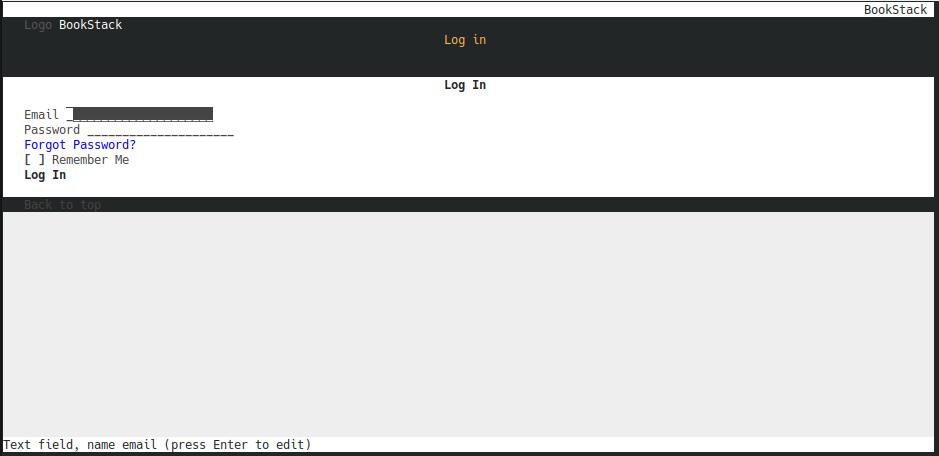

Alternatively, if you are working in a full DE or otherwise using a registered domain name, you can visit the page within your preferred web browser to see the page below

[![](https://www.knoats.com/uploads/images/gallery/2020-06/scaled-1680-/image-1593553963212.png)](https://www.knoats.com/uploads/images/gallery/2020-06/image-1593553963212.png)
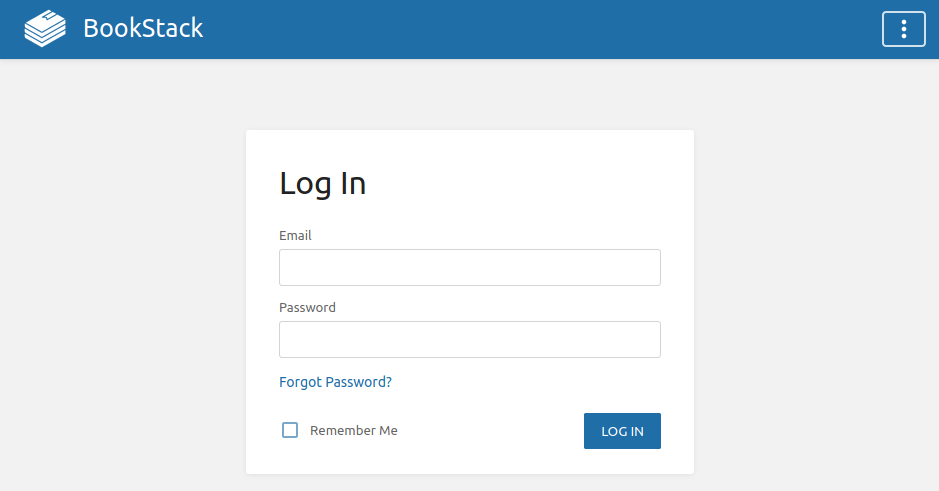

#### Troubleshooting

Generally, you should be able to find all relative logs and error messages by running either `docker logs bookstack` or `docker logs bookstack_db`. If you want docker to provide a live feed of logs, you'll need to add the `-f` flag to do so, as in `docker logs bookstack -f`.

In the case of _this_ Bookstack instance, we are using https to encrypt the web traffic, which runs over port 443/tcp. So when you visit knoats.com in your web browser, I have an NGINX configuration in place to ensure that all traffic is routed through the port `443`, which is decrypted and passed internally to the `localhost` port `0.0.0.0:6875` where our containerized port `80` then serves our web content using NGINX.

    CONTAINER ID        IMAGE                   COMMAND             CREATED             STATUS              PORTS                           NAMES
    xxxxxxxxxxxx        linuxserver/bookstack   "/init"             25 hours ago        Up 25 hours         443/tcp, 0.0.0.0:6875->80/tcp   bookstack
    xxxxxxxxxxxx        linuxserver/mariadb     "/init"             26 hours ago        Up 25 hours         3306/tcp                        bookstack_db

Some of this information has been changed for security reasons - such as ports and the CONTAINER ID's seen above. If you want to configure SSL for your bookstack, see [Knoats - NGINX SSL Configuration](https://www.knoats.com/link/30#bkmrk-configure-ssl)

# Development

For my development notes

# Bug Reports

Feel free to edit this page and complain about everything here.  
  
Must be a registered user with a verified email.

# Backup Bookstack Using Docker

Don't drive as root, create a BookStack administrator account by following the [adduser instructions](http://knoats.com/link/14#bkmrk-page-title).

If you are running Bookstack in a docker container, run the following command to backup the database from **outside** the docker container. Navigate to the root of the running docker container, and run the following command. Don't forget to replace the `<INSERTS>` with actual file names, users, or other information regarding your Bookstack instance.  
`sudo docker exec <DOCKER-CONTAINER-NAME> /usr/bin/mysqldump -u <USER> -p <DATABASE> > <DATABASE>.backup.sql` so an example of this command would be the following - 

```bash
sudo docker exec bookstack /usr/bin/mysqldump -u bookstackadmin -p bookstack_db > bookstack.backup.sql
```


This will output the file `bookstack.backup.sql` into your working directory, move this file to a safe place so you can restore the database should something go wrong in the future. Alternatively, you could manually enter the container with `sudo docker exec -it CONTAINER bash` and then just run `mysqldump -u USER -p DATABASE > DATABASE.backup.sql && exit` followed by `sudo docker cp CONTAINER:/container/path/DATABASE.backup.sql local/path` to copy the SQL backup onto our container's host.  

This is all that needs to be done to backup the base content of BookStack, but there are some important configurations and upload directories you'll want to zip up, too. To zip these directories, enter your docker container and run the following commands

    sudo docker exec -it BOOKSTACK_CONTAINER bash
    tar -czvf bookstack-files-backup.tar.gz /var/www/html/.env /var/www/html/public/uploads /var/www/html/storage/uploads
    exit
    sudo docker cp BOOKSTACK_CONTAINER:/var/www/html/bookstack/bookstack-files-backup.tar.gz /home/USER/ftp/

If you used the method above, the database can be easily restored using the following commands

    # Move our backup files into the containers that need them
    sudo docker cp /home/USER/ftp/backup/bookstack.backup.sql BOOKSTACK_MYSQL_CONTAINER:/
    sudo docker cp /home/USER/ftp/backup/bookstack-files-backup.tar.gz BOOKSTACK_CONTAINER:/var/www/html/bookstack/

    # Enter MySQL container and restore the DB
    sudo docker exec -it BOOKSTACK_MYQL_CONTAINER bash
    mysql -u {mysql_user} -p {database_name} < {backup_file_name}
    exit

    # Enter Bookstack container and restore local data
    sudo docker exec -it BOOKSTACK_CONTAINER bash
    tar -xvzf bookstack-files-backup.tar.gz
    exit

If you are restoring to a new version of BookStack you will have to run `php artisan migrate` after restore to perform any required updates to the database. For safe keeping, toss this file somewhere so you can quickly peek at it whenever you need it. But once you run these commands a few times, you won't forget them.

    #!/bin/bash
    ##Reference for backing up the BookStack database within docker container
    ################

    # Backup Bookstack Database
    sudo docker exec DOCKER_MYSQL_CONTAINER /usr/bin/mysqldump -u USER --password=PASSWORD DATABASE > DATABASE.backup.sql

    # Backup Bookstack Files
    sudo docker exec -it DOCKER_CONTAINER bash
    tar -czvf bookstack-files-backup.tar.gz .env public/uploads storage/uploads
    exit
    sudo docker cp CONTAINER:/var/www/html/bookstack/bookstack-files-backup.tar.gz /home/USER/ftp/

    # Or manually copy them...
     # sudo docker cp BOOKSTACK_CONTAINER:/var/www/html/bookstack/.env /home/USER/ftp/
     # sudo docker cp BOOKSTACK_CONTAINER:/var/www/html/bookstack/storage/uploads /home/USER/ftp/
     # sudo docker cp BOOKSTACK_CONTAINER:/var/www/html/bookstack/public/uploads /home/USER/ftp/

    # Restore
    # Move our backup files into the containers that need them
     # sudo docker cp /home/USER/ftp/backup/bookstack.backup.sql BOOKSTACK_MYSQL_CONTAINER:/
     # sudo docker cp /home/USER/ftp/backup/bookstack-files-backup.tar.gz BOOKSTACK_CONTAINER:/var/www/html/bookstack/

    # Enter MySQL container and restore the DB
     # sudo docker exec -it BOOKSTACK_MYQL_CONTAINER bash
     # mysql -u USER -p DATABASE < DATABASE.backup.sql
     # exit

    # Enter Bookstack container and restore local data
     # sudo docker exec -it BOOKSTACK_CONTAINER bash
     # tar -xvzf bookstack-files-backup.tar.gz
     # exit

# Migration Notes

Get a maintainance page, or pass-off the service to another host during maintenances.

Configure OSSEC with ansible, and / or to come with the knode snapshot on DO.

Better ways to utilize floating IPs?

Monitor memory on new bookstack host, consider resizing

Backup the multi-service nginx configuration

Rename ossec agents, fail2ban clients accoring to new hostnames

# To do / Links

**Bindmounting volumes between docker container and host**  
[https://www.digitalocean.com/community/tutorials/how-to-share-data-between-the-docker-container-and-the-host](https://www.digitalocean.com/community/tutorials/how-to-share-data-between-the-docker-container-and-the-host)  
  
**To backup more efficiently, setup jobs eventually.**  
[https://docs.docker.com/storage/bind-mounts/](https://docs.docker.com/storage/bind-mounts/)  
[https://tuhrig.de/difference-between-save-and-export-in-docker/](https://tuhrig.de/difference-between-save-and-export-in-docker/)

**Move through most of these guides, cross-check with others.**  
[https://github.com/trimstray/the-practical-linux-hardening-guide](https://github.com/trimstray/the-practical-linux-hardening-guide)  
[https://github.com/trimstray/linux-hardening-checklist#separate-partitions](https://github.com/trimstray/linux-hardening-checklist#separate-partitions)  
[https://git-scm.com/book/en/v2/Distributed-Git-Contributing-to-a-Project](https://git-scm.com/book/en/v2/Distributed-Git-Contributing-to-a-Project)

**Finish OpenSCAP Page:** [https://github.com/OpenSCAP/openscap](https://github.com/OpenSCAP/openscap)

**Read this stuff, or otherwise organize it because its useful -** [https://github.com/CVEProject/cvelist](https://github.com/CVEProject/cvelist)  
[https://github.com/ComplianceAsCode/content](https://github.com/ComplianceAsCode/content)  
[https://github.com/OpenSCAP/openscap-daemon/blob/master/README.md#rest-api](https://github.com/OpenSCAP/openscap-daemon/blob/master/README.md#rest-api)  
[https://github.com/OpenSCAP/openscap-daemon/blob/master/README.md#evaluate-something-else-than-local-machine](https://github.com/OpenSCAP/openscap-daemon/blob/master/README.md#evaluate-something-else-than-local-machine)

Ansible  
Nas Box VS Server Rack for self-hosting at home  
Endian - Order of bytes book / page / chapter  
Grab-all DNS subdomain -&gt; Linux Box -&gt; internal routes to services based on request  
  
**Tiling Window Managers** X11 Compositor - i3

Wayland Compositor - Sway

# Formating Guide

#### Overview

This is a rule-of-thumb guide for formatting permissions and content within books, chapters, pages, and shelves. Most of this should come natural, since most of this is just centered around creating readable content with proper grammar and formatting. This page serves as an example for any formatting features referred to in this guide.

#### CSS

Custom Bookstack CSS values - 

```css
<style>

.featured-image-container {
    background-color: white;
}

.entity-list-item-image .svg-icon {
    color: #fff;
    border-radius: 5px;
    background-color: #2d9109;
    box-shadow: 3.5px 2px #0000008c;
}

.featured-image-container-wrap .svg-icon {
    color: #fff;
    border-radius: 5px;
    background-color: #2d9109;
    box-shadow: 3.5px 2px #0000008c;
}

.entity-list-item-image {
    background-color: #fff;
}

</style>
```

#### Pages


* * *

##### Basic Formatting

*   Capitalize all words in titles of publications and documents, except a, an, the, at, by, for, in, of, on, to, up, and, as, but, it, or, and nor.
*   Use and size headers relative to their position in the hierarchy, especially in Bookstack. This creates an easy to navigate structure, or table of contents, once the document is completed and is useful when restructuring things later on.
    *   Start from 'Header Tiny' and work your way up, adjusting the structure of the page accordingly as your progress.
    *   Don't allow headers to meet, either use Horizontal Rules or consider restructuring or adding some explanation or information on the reason this structure is important for this topic.
*   **Site your sources.**
    *   Not to police the information, but to share the research.
*   Use code blocks for anything more than one line.
*   Use inline code for file paths, one-line commands, and variables / configuration settings.
*   When creating links, be sure to specify them to open in a new page.

#### Permissions

Permissions should generally be handled on a page-by-page basis. Since Knoats is a public Bookstack, all books should have the basic permissions set below.

![](https://knoats.com/uploads/images/gallery/2019-05/scaled-840-/image-1558105660278.png)

All chapters and pages within the book will inherit these permissions, which retains the structure of the book regardless of permissions. Chapters should not be hidden, since they are nothing but a path to content there is no need to apply the permissions.

Applying redundant permissions would create more settings to go back and modify should things change in the future. If a page is not to be hidden, no permissions need to be applied at all. The only object in the path to the page that should have permissions is the book itself. 

If a page should be hidden from public view, simply navigate to that page and edit its permissions to mirror the above, _minus the Public 'View' Action_. This will retain the base permission settings of all other roles on this instance, but hide the page from public view. This same concept should apply given the permission set changes, refer to previously configured books to mirror their configuration.  

As an Editor, you have the ability to create a page and hide it from any role other than Editor, since you yourself require the permissions to view and edit the content. You can request a user-specific role, should you want to create private content from other Editors, but be warned it will still be viewed and moderated by _only me, _since this is legally my domain I need to oversee the content hosted on it for more than a few reasons. If you are comfortable with this, I would be happy to provision you a private role adjusted to your needs.

##### Available Roles

There are four roles that may be selected when applying permissions to content within this Bookstack. All pages should have permissions manually configured, even if the default permissions are desired. Always be sure to check 'Use Custom Permissions' at the top in order to make your settings apply.

1.  Admin
    *   Complete control over everything, everywhere, created by anyone.
    *   Does _not_ have access to view private information such as passwords on a back-end server level.
        *   No one in relation to this website has open access to view such content. That being said, you are responsible for your own information. Please use safe passwords - if your account is compromised I can easily recover it, but any information lost due to active privileges on your account may be gone for good. Keeping this in mind, be respectful of the content here.
        *   E-mail [mailedknoats@gmail.com](mailto:mailedknoats@gmail.com) or contact an admin through other means to recover an account. Since this is a high-security role, see the active list of Admin users below.  

            <table style="border-collapse: collapse; width: 100%;" border="1">

            <tbody>

            <tr>

            <td class="align-center" style="width: 50%;">Admin</td>

            <td class="align-center" style="width: 50%;">Personal E-mail / Contact</td>

            </tr>

            <tr>

            <td style="width: 50%;">Shaun Reed</td>

            <td style="width: 50%;">shaunrd0@gmail.com</td>

            </tr>

            </tbody>

            </table>

2.  Editor
    *   Able to view and edit anything, anywhere, as well as update, create, and delete pages.
    *   'sudo' editor
3.  Viewer
    *   Able to view all content, aside from instance-specific notes I've taken on this Bookstack, since they are usually _a fucking mess_.
    *   Can't edit everything, but if a page is created for the purpose of editing in participation, a 'Viewer' will inherit these permissions and play the role of the active users / contributors of Knoats pages.
4.  Public
    *   Able to view the pages that are 'finished', and meet the guidelines in this page.
    *   This is the content that will _eventually _be the public face of Knoats, without requiring login. The purpose of this role and the public account is for testing this content.
    *   Pages can be hidden from public view by applying custom permissions to reflect the Default Roles / Permissions and adjusting them accordingly. Note that permissions can be lost if consideration is not taken when setting these. Contact an admin to regain permissions.

# Updating BookStack Using Docker

You can use [volumes within docker-compose](https://www.knoats.com/books/docker/page/volumes) to store your configurations for your services, including other files and databases, on the host and pass them to the container to be used - this enables you to easily remove containers and purge images without worrying about backing up your data. As personal preference, I still run manual backups using the instructions shared on the [Backup BookStack Page](https://www.knoats.com/books/bookstack/page/backup-bookstacks), but you shouldn't need to worry as the data is never touched when you are updating these images - the only concern would be if the image changes the way it uses the information, in which case you may need to change some paths for the volumes within your `docker-compose.yml`.  

Run the below commands to update all services defined within your `docker-compose.yml`.

    docker-compose down
    docker container prune
    docker image prune -a

    #Verify you have no images left with your service, if you do, remove them.
    docker images -a
    docker-compose ps -a

    #Once you verify the above, you are ready to spin up your services and pull the latest images.
    docker-compose up -d

The above commands are more general and less specific to BookStack, and the same approach could be used to update containers for any service you are using, just be sure to persist and / or backup your data.

For this example, we run the commands to update BookStack -

    user@bookstack:~/linuxserver-bookstack$ docker-compose down
    Stopping bookstack    ... done
    Stopping bookstack_db ... done
    Removing bookstack    ... done
    Removing bookstack_db ... done
    Removing network linuxserver-bookstack_default
    user@bookstack:~/linuxserver-bookstack$ docker image prune
    WARNING! This will remove all dangling images.
    Are you sure you want to continue? [y/N] y
    Deleted Images:
    untagged: linuxserver/bookstack@sha256:d94bdeaea3eb9d2935e38s1dcca85450cdbd144706ccb6x78a2e75f0bde07
    deleted: sha256:c32f40ccc7s51e508d2x2b241a00d529a35123a18d661b1edde15aac9bfee
    deleted: sha256:5f2a803x93bb9fa8ab547c31d5a4f3e8520402d6425s85b53df80ebe515a9
    deleted: sha256:84c9530d404015fc887c22xeecb1aebd99d2303aade5d48a2sfda044427f8
    deleted: sha256:ff6dcf5097f8cfa05ff357d8axaf334c3a06259d97a6f2082cs8e7f280608

    Total reclaimed space: 150.9MB
    user@bookstack:~/linuxserver-bookstack$ docker-compose images
    Container   Repository   Tag   Image Id   Size
    ----------------------------------------------
    user@bookstack:~/linuxserver-bookstack$ docker-compose up -d
    Creating network "linuxserver-bookstack_default" with the default driver
    Creating bookstack_db ... done
    Creating bookstack    ... done
    user@bookstack:~/linuxserver-bookstack$

# Exploring the Database

I'm running my Bookstack in a docker container, so for me if I want to explore my database the first step is to get a bash terminal within the container. Lets say you've named your bookstack database container `db_bookstack` - the command to enter a bash terminal within the container would be `docker exec -it db_bookstack bash` 

Once you have a terminal, login to the database by running `mysql -u username -p` and enter the password to login when prompted. If you setup your bookstack with a docker container this should have been configured within your `docker-compose.yml` that you use to spin up your services. 

Once your logged in, you'll see a mysql prompt like the below - 

```mysql
MariaDB [(none)]> 
```

The prompt shows `(none)` because we haven't selected a database. Run `show databases;` to show the databases available to you and select one with `use database;`, see below for an example.

```
MariaDB [(none)]> show databases;
+--------------------+
| Database           |
+--------------------+
| bookstack          |
| information_schema |
+--------------------+
2 rows in set (0.000 sec)

MariaDB [(none)]> use bookstack;
Reading table information for completion of table and column names
You can turn off this feature to get a quicker startup with -A

Database changed
MariaDB [bookstack]> 
```
**NOTE: The names of these databases do not reflect any actual databases**

Now that we've selected the database we want to explore, let's see what it contains by running `show tables;` - 

```
MariaDB [bookstack]> show tables;
+---------------------+
| Tables_in_bookstack |
+---------------------+
| activities          |
| api_tokens          |
| attachments         |
| books               |
| bookshelves         |
| bookshelves_books   |
| cache               |
| chapters            |
| comments            |
| email_confirmations |
| entity_permissions  |
| images              |
| joint_permissions   |
| migrations          |
| page_revisions      |
| pages               |
| password_resets     |
| permission_role     |
| role_permissions    |
| role_user           |
| roles               |
| search_terms        |
| sessions            |
| settings            |
| social_accounts     |
| tags                |
| user_invites        |
| users               |
| views               |
+---------------------+
29 rows in set (0.000 sec)
```

See something you want to explore further? Describe it by ruinng `describe table;`, like below where I describe the `books` table.

```
MariaDB [bookstack]> describe books;
+-------------+------------------+------+-----+---------+----------------+
| Field       | Type             | Null | Key | Default | Extra          |
+-------------+------------------+------+-----+---------+----------------+
| id          | int(10) unsigned | NO   | PRI | NULL    | auto_increment |
| name        | varchar(191)     | NO   |     | NULL    |                |
| slug        | varchar(191)     | NO   | MUL | NULL    |                |
| description | text             | NO   |     | NULL    |                |
| created_at  | timestamp        | YES  |     | NULL    |                |
| updated_at  | timestamp        | YES  |     | NULL    |                |
| created_by  | int(11)          | NO   | MUL | NULL    |                |
| updated_by  | int(11)          | NO   | MUL | NULL    |                |
| restricted  | tinyint(1)       | NO   | MUL | 0       |                |
| image_id    | int(11)          | YES  |     | NULL    |                |
+-------------+------------------+------+-----+---------+----------------+
10 rows in set (0.001 sec)
```

Neat! We have all the tools we need to step through any database that we have access to explore, and now we just need to be able to list the actual content within the tables of the database. Below, we run `select` and `from` commands that refer to specific tables and elements within our database. After the commands are input, the tables and their values we selected are displayed. See below for an example.

```
MariaDB [bookstack]> select id, name, created_at, updated_at, created_by from books;
+----+--------------------------+---------------------+---------------------+------------+
| id | name                     | created_at          | updated_at          | created_by |
+----+--------------------------+---------------------+---------------------+------------+
|  1 | Pi                       | 2019-04-06 00:00:35 | 2019-05-17 15:41:22 |          1 |
|  4 | Docker                   | 2019-04-06 00:02:12 | 2020-02-24 03:26:34 |          1 |
|  7 | BookStack                | 2019-04-06 04:41:38 | 2019-05-17 20:42:20 |          4 |
|  9 | Self-Hosted Applications | 2019-04-06 12:12:51 | 2019-07-06 14:17:31 |          4 |
| 13 | Networking               | 2019-04-19 06:48:57 | 2019-07-06 12:54:22 |          4 |
| 16 | Security                 | 2019-05-04 15:02:19 | 2019-05-12 13:53:57 |          4 |
| 20 | Linux Admin              | 2019-07-06 12:57:22 | 2019-07-06 13:20:10 |          4 |
| 21 | Git                      | 2019-07-19 03:11:03 | 2019-07-26 21:54:29 |          4 |
| 23 | Vim                      | 2019-07-21 05:15:16 | 2019-08-30 08:22:47 |          4 |
| 24 | Ansible                  | 2019-07-28 08:17:04 | 2019-08-30 07:58:16 |          4 |
| 28 | C++                      | 2019-10-13 20:24:23 | 2020-03-01 14:31:16 |          4 |
+----+--------------------------+---------------------+---------------------+------------+
```

# Laptop

### XPS 15 9500 
i7-10750H 10th Gen, 16GB RAM

(XPS15)
Was a great machine, but the unit arrived with a dead pixel. It was covered by several warranties and would have been corrected if I kept it, but I did not see why I would file any claims on a brand new device so I chose to return it.

i7-10750H 10th Gen, 16GB RAM, battery life on Windows was around 5-6 hours. Battery life on Linux was around 10 hours doing normal programming / web browsing. While doing office stuff on Kubuntu I seen the power draw drop below 10W, which is impressive considering that is the normal draw from an XPS 13 9300 4k UHD running Kubuntu doing office work, only with a much larger screen and a battery nearly twice the size.

I would grab the i7-10850H for the 16 threads. Dont bother buying RAM or storage from Dell, both can be easily upgraded on this machine and Dell charges far too much for units with upgraded RAM / SSDs. Even worse, there have been many reports of dell using inconsistent parts slight technical differences like read / write speed on SSDs. 

When booting the device look closely at the black around the dell logo, if you see a single white pixel it is a deal pixel. Seems ridiculous on a 4k screen but these things are priced far too high to overlook such an obvious defect. 

Power draw from XPS 15 4k UHD i7-10750H 10th Gen, 16GB RAM running Kubuntu - 
[![](https://www.knoats.com/uploads/images/gallery/2020-08/scaled-1680-/image-1597159565801.png)](https://www.knoats.com/uploads/images/gallery/2020-08/image-1597159565801.png)


[![](https://www.knoats.com/uploads/images/gallery/2020-08/scaled-1680-/image-1597159588912.png)](https://www.knoats.com/uploads/images/gallery/2020-08/image-1597159588912.png)


Mind you, this is with *several* applications running, but the brightness is at its lowest setting with the keyboard backlight on. 

See my workspaces below, properly cluttered with IDEs, web browsers stuffed with too many tabs, voice / team chat applications, music, and more.

[![](https://www.knoats.com/uploads/images/gallery/2020-08/scaled-1680-/image-1597160036106.png)](https://www.knoats.com/uploads/images/gallery/2020-08/image-1597160036106.png)


A downfall is the power brick for this thing is big and heavy compared to the brick for the XPS 13 9300. But, that said, it charges fast and lasts a long time... On Kubuntu Linux.

[![](https://www.knoats.com/uploads/images/gallery/2020-08/scaled-1680-/image-1597251041131.png)](https://www.knoats.com/uploads/images/gallery/2020-08/image-1597251041131.png)

[![](https://www.knoats.com/uploads/images/gallery/2020-08/scaled-1680-/image-1597251093520.png)](https://www.knoats.com/uploads/images/gallery/2020-08/image-1597251093520.png)

**3DMark Benchmarks**\
[API Overhead](http://www.3dmark.com/aot/367756)\
[VRS Tier 2](http://www.3dmark.com/vrs2/7324)\
[VRS Tier 1](http://www.3dmark.com/vrs/14510)\
[PCI Express](http://www.3dmark.com/pcie/89642
)\
[Fire Strike Ultra 4K](http://www.3dmark.com/fs/23172716)\
[Fire Strike](http://www.3dmark.com/fs/23173547)\
[Time Spy](http://www.3dmark.com/spy/13160406)\
[Sky Diver](http://www.3dmark.com/sd/6005579)\
[Night Raid](http://www.3dmark.com/nr/310176)

Windows battery while browsing the web - 

[![](https://www.knoats.com/uploads/images/gallery/2020-08/scaled-1680-/image-1597270907904.png)](https://www.knoats.com/uploads/images/gallery/2020-08/image-1597270907904.png)

Note that i removed all bloatware
### XPS 13 9300

RAM is soldered. 32GB option is sometimes available on Dell's website. Developer edition ships with Ubuntu Linux. Upgrade the storage yourself, go for the 256GB option.

Power draw from XPS 13 4k UHD i7-1065G7 10th Gen, 32GB RAM running Kubuntu -

[![](https://www.knoats.com/uploads/images/gallery/2020-08/scaled-1680-/image-1597175223799.png)](https://www.knoats.com/uploads/images/gallery/2020-08/image-1597175223799.png)

And on this XPS 13 9300, I was running a fresh install of Kubuntu and running only firefox with 3-5 tabs open periodically. No widgets, terminals, IDEs, music, etc. 

Needless to say, this was quick to go back into the box it came in. Considering I am in such a light-weight OS and environment, this will not be usable under any realistic workload for more then a few hours. Not what I had in mind for the XPS 9300.


[![](https://www.knoats.com/uploads/images/gallery/2020-08/scaled-1680-/image-1597268397735.png)](https://www.knoats.com/uploads/images/gallery/2020-08/image-1597268397735.png)

[![](https://www.knoats.com/uploads/images/gallery/2020-08/scaled-1680-/image-1597268457255.png)](https://www.knoats.com/uploads/images/gallery/2020-08/image-1597268457255.png)

**3DMark Benchmarks**\
[Time Spy](http://www.3dmark.com/spy/13405332)\
[VRS Tier 1](http://www.3dmark.com/vrs/14508)\
[API Overhead](http://www.3dmark.com/aot/367753)\
[Sky Diver](http://www.3dmark.com/sd/6022738)\
[Night Raid](http://www.3dmark.com/nr/310167)\
[Fire Strike Ultra 4K](http://www.3dmark.com/fs/23280345)\
[Fire Strike](http://www.3dmark.com/fs/23280325)


Windows battery life browsing the web - 

[![](https://www.knoats.com/uploads/images/gallery/2020-08/scaled-1680-/image-1597270859368.png)](https://www.knoats.com/uploads/images/gallery/2020-08/image-1597270859368.png)

# Adding new hosts

Create a droplet at digital ocean, assign it an ssh key to use for initial login as `root` user

Login as `root` using ssh key assigned

```
ssh root@123.123.123.123 -i .ssh/id_rsa
```

<p class="callout warn">Any users created before the ansible roles are assigned will not receive skeleton file configurations. If the user needs these configs, wait until after the ansible roles are ran on the host to create the user</p>

Create `kansible` user, add to sudoers

```
sudo adduser kansible
sudo usermod -aG sudo kansible
```

Move to `/home/kansible` and assign an authorized ssh key

```
sudo su kansible
cd
mkdir .ssh
vim .ssh/authorized_keys
```

Modify `kansible` user's sudo permissions to allow use of sudo with no password. Make sure to run with `sudo visudo -f` or the system will not parse the `mySudoers` file below for sudo authentication / configurations

```
sudo visudo -f /etc/sudoers.d/mySudoers
```

Login to ansible manager

```
ssh kapak@kansible
sudo su kansible
cd /etc/ansible/
```

Modify `/etc/ansible/hosts` to contain new IP for new host. Use port 22 for ssh initially.

Modify `/etc/ansible/make-host.yml` to assign the appropriate roles to the host, and to target the correct host or host group. This play will install required packages and transfer configurations, and if different ssh port is used `/etc/ansible/hosts` should be updated with new SSH port after the play finishes


May have to run `/etc/ansible/plays/configure-fail2ban/configure-fail2ban.yml` on the new host as well to make sure any new fail2ban configurations are synced

If permissions in home directory are assigned to `root:root`, run the following command for each user to reassign ownership

```
sudo chown kansible:kansible -R /home/kansible/
```


Now we can create any additional users we need, and the skeleton files will be automatically given to them from the start.

Create user `kapak`, add to sudoers

```
sudo adduser kapak
sudo usermod -aG sudo kapak
```

Move to `/home/kapak` and assign an authorized ssh key

```
sudo su kapak
cd
mkdir .ssh
vim .ssh/authorized_keys
```


#### Updating Yubikeys

Don't forget to make sure the yubikeys in `/etc/ssh/authorized_yubikeys` are configured to match the first N characters of your yubikey.

# Knoats

# Privacy Policy

This privacy policy describes how Knoats.com uses and protects any information that you give us. We are committed to ensuring that your privacy is protected. If you provide us with personal information through registration, you can be assured that it will only be used in accordance with this privacy statement.

### Website Visitors

Like most website operators, Knoats.com collects non-personally-identifying information of the sort that web browsers and servers typically make available, such as the browser type, language preference, referring site, and the date and time of each visitor request. Knoats.com’s purpose in collecting non-personally identifying information is to better understand how Knoats.com’s visitors use its website. From time to time, Knoats.com may release non-personally-identifying information in the aggregate, e.g., by publishing a report on trends in the usage of its website.

Knoats.com also collects potentially personally-identifying information like Internet Protocol (IP) addresses. Knoats.com does not use IP addresses to identify its visitors, however, and does not disclose such information, other than under the same circumstances that it uses and discloses personally-identifying information, as described below.

### Gathering of Personally-Identifying Information

Certain visitors to Knoats.com choose to interact with Knoats.com in ways that require Knoats.com to gather personally-identifying information. The amount and type of information that Knoats.com gathers depends on the nature of the interaction. For example, we ask visitors who contribute to documentation to provide a username and valid email address.

In each case, Knoats.com collects such information only as is necessary or appropriate to fulfill the purpose of the visitor’s interaction with Knoats.com. Knoats.com does not disclose personally-identifying information other than as described below. Visitors can always refuse to supply personally-identifying information, with the caveat that it may prevent them from engaging in certain website-related activities.

### Protection of Certain Personally-Identifying Information

Knoats.com discloses potentially personally-identifying and personally-identifying information only to those of project administrators, employees, contractors, and affiliated organizations that (i) need to know that information in order to process it on Knoats.com’s behalf or to provide services available through Knoats.com, and (ii) that have agreed not to disclose it to others. Some of those employees, contractors and affiliated organizations may be located outside of your home country; by using Knoats.com, you consent to the transfer of such information to them.

Knoats.com will not rent, sell, or otherwise distribute potentially personally-identifying and personally-identifying information to anyone. Other than to project administrators, employees, contractors, and affiliated organizations, as described above, Knoats.com discloses potentially personally-identifying and personally-identifying information only when required to do so by law, if you give permission to have your information shared, or when Knoats.com believes in good faith that disclosure is reasonably necessary to protect the property or rights of Knoats.com, third parties, or the public at large.

If you are a registered user of a Knoats.com website and have supplied your email address, Knoats.com may occasionally send you an email to tell you about new features, maintenances, or updates. We primarily use E-Mail communications for this type of information, so we expect to keep this type of email to a minimum.

If you send us a request, we reserve the right to publish it in order to help us clarify or respond to your request or to help us support other users. Knoats.com takes all measures reasonably necessary to protect against the unauthorized access, use, alteration, or destruction of potentially personally-identifying and personally-identifying information.

### Use of personal information

We use the information you provide to register for an account, receive server maintenance notifications, use documentation services, or participate in the Knoats project in any other way.

We will not sell or lease your personal information to third parties unless we have your permission or are required by law to do so.

You will not be contacted by Knoats.com or any associated address for marketing purposes using the information provided during user registration.

### Legal grounds for processing personal information

We rely on one or more of the following processing conditions:

- our legitimate interests in the effective delivery of information and services to you;
- explicit consent that you have given;
- legal obligations.

### Access to data

You have the right to request a copy of the information we hold about you. If you would like a copy of some or all your personal information, please follow the instructions at the end of this policy.

Knoats.com user accounts can be edited by following these steps:

1. Visit [https://knoats.com/login](https://knoats.com/login), and enter your username and password.
2. You will be logged in and redirected to [https://knoats.com/](https://knoats.com/).
3. Click your user icon at the top right of the page and select 'Edit Profile'.

### Retention of personal information

We will retain your personal information on our systems only for as long as we need to, for the success of the Knoats project and the programs that support Knoats.com. We keep contact information (such as opt-in mailing lists) until a user requests that we delete that information via email. If you choose to unsubscribe from the mailing list, we may keep certain limited information about you so that we may continues to honor your request moving forward.

Knoats.com will not delete personal data from logs or records necessary to the operation, development, or archives of the Knoats project.

When deletion is requested or otherwise required, we will anonymise the data of data subjects and/or remove their information from publicly accessible sites if the deletion of data would break essential systems or damage the logs or records necessary to the operation, development, or archival records of the Knoats project.

If you would like to request deletion of your account and associated data, please send an E-Mail from the associated account's verified E-Mail address to <mailedknoats@gmail.com> including your username. Your account will be reviewed for suspicious activity and all associated user content will handled as described above.

### Rights in relation to your information

You may have certain rights under data protection law in relation to the personal information we hold about you. In particular, you may have a right to:

- request a copy of personal information we hold about you;
- ask that we update the personal information we hold about you, or independently correct such personal information that you think is incorrect or incomplete;
- ask that we delete personal information that we hold about you from live systems, or restrict the way in which we use such personal information (for information on deletion from archives, see the “Retention of personal information” section);
- object to our processing of your personal information; and/or
- withdraw your consent to our processing of your personal information (to the extent such processing is based on consent and consent is the only permissible basis for processing).

If you would like to exercise these rights or understand if these rights apply to you, please follow the instructions at the end of this Privacy statement.

### Third Party Links

Our website may contain links to other websites provided by third parties not under our control. When following a link and providing information to a 3rd-party website, please be aware that we are not responsible for the data provided to that third party. This privacy policy only applies to the websites listed at the beginning of this document, so when you visit other websites, even when you click on a link posted on Knoats.com, you should read their own privacy policies.

### Cookies

Additionally, information about how you use our website is collected automatically using “cookies”. Cookies are text files placed on your computer to collect standard internet log information and visitor behaviour information. This information is used to track visitor use of the website and to compile statistical reports on website activity.

### Privacy Policy Changes

Although most changes are likely to be minor, Knoats.com may change its Privacy Policy from time to time, and at Knoats.com’s sole discretion. Knoats.com encourages visitors to frequently check this page for any changes to its Privacy Policy. Your continued use of this site after any change in this Privacy Policy will constitute your acceptance of such change.

### Contact

Please contact us if you have any questions about our privacy policy or information we hold about you by emailing mailedknoats@gmail.com

# Welcome to Knoats!

<p id="bkmrk-this-is-a-personal-p">This is a personal project in server-administration, documentation, and development. None of the information here is considered official documentation of any kind. Sign up is open, email verification is required, and upon logging in you will only be able to view some books and pages that are hidden to public visitors. If you have any questions or concerns, reach out to me via email - <a href="mailto:mailedknoats@gmail.com">mailedknoats@gmail.com</a>.</p>
<p id="bkmrk-feel-free-to-sign-up">Feel free to sign up and look around, there isn't much here but some personal notes on various topics like NGINX, Bash, Docker, etc.</p>
<p id="bkmrk-knoats-books"><a href="https://www.knoats.com/books">View Knoats</a></p>

<p id="bkmrk-in-order-to-meet-tos">As the sole administrator of Knoats, on a back-end server level, I have no access (or desire) to view private content such as passwords or information from linked accounts.