Working on hosting this container on localhost? Because DNS resolves locally on your host first, you can override any URL within your /etc/hosts file by passing the below configuration, which allows us to visit www.myspace.com within a web browser to see the content being served locally.
You should not need to be running NGINX on your box locally.
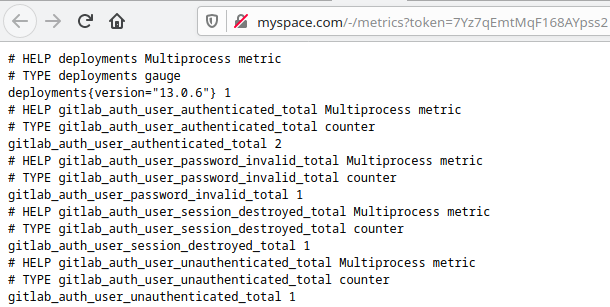
This simple configuration is meant for testing only and omits the environment variable `$GITLAB_HOME` so that it is self-contained. That being said, all we need to do it run `docker-compose up -d && docker logs -f gitlab`, and visit `myspace.com` in a web browser. At first, you may see the default GitLab 502 page while the container is starting, but within a few minutes you should be able to refresh the page and see the page below [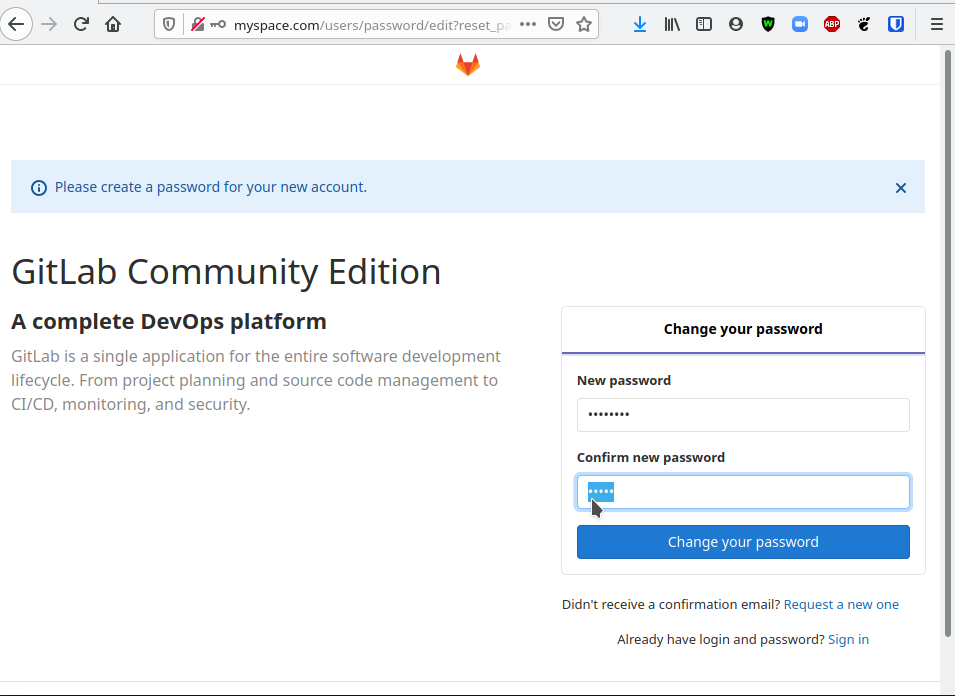](https://www.knoats.com/uploads/images/gallery/2020-06/image-1592325694765.png) This page is requesting for you to create a password for the root account. After you submit this form you can then login to the GitLab with the username `root` and the relevant password configured here. Once logging in as root, we see the below landing page [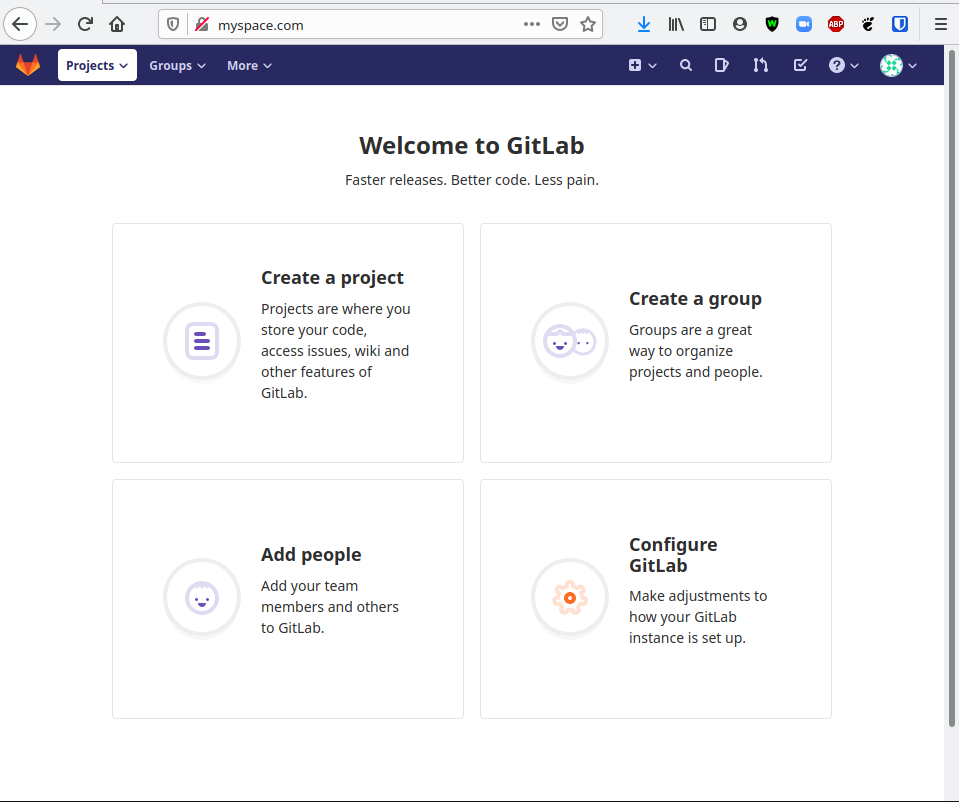](https://www.knoats.com/uploads/images/gallery/2020-06/image-1592325859170.png) A normal user account can be created through the normal registration process on the home page of your instance. At this point we can already register a guest user, create a public repository, clone it, then push new content. [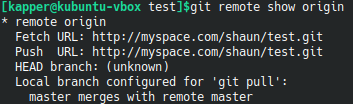](https://www.knoats.com/uploads/images/gallery/2020-06/image-1592337734289.png) [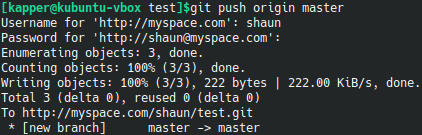](https://www.knoats.com/uploads/images/gallery/2020-06/image-1592337903805.png) Below, I'm logged in as a user in one window and root in the other. The Admin Area is a nice landing page if you are looking to configure a new feature that your instance does not have yet, as clicking on the `?` next to any label will take you directly to the documentation to setup or modify that feature. [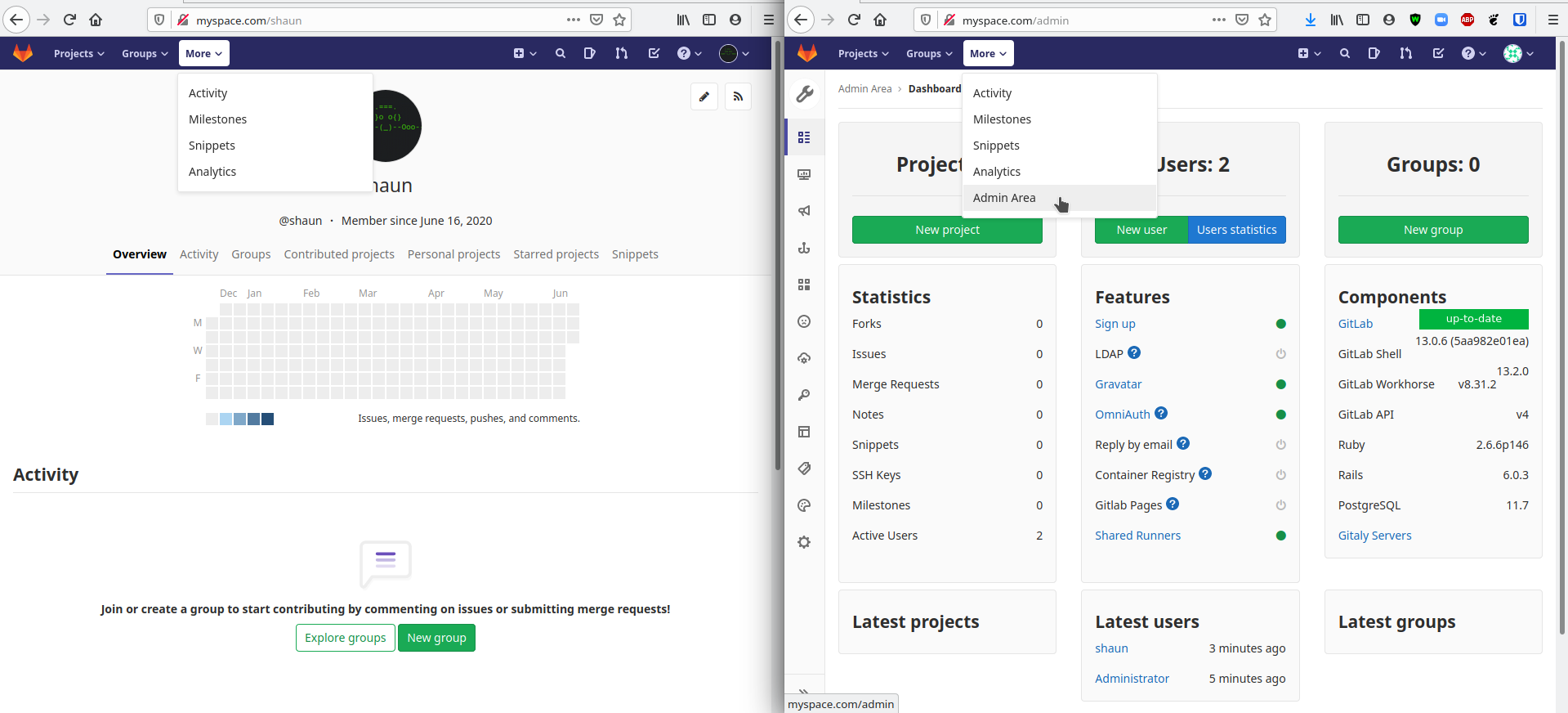](https://www.knoats.com/uploads/images/gallery/2020-06/image-1592327135791.png) ## Resource Usage [Table Source](https://docs.gitlab.com/ee/administration/reference_architectures/1k_users.html)\ [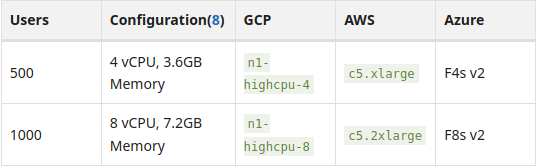](https://www.knoats.com/uploads/images/gallery/2020-06/image-1592332848684.png) General hardware requirements can be found on the [Official Hardware Requirements Documentation](https://docs.gitlab.com/ee/install/requirements.html#hardware-requirements) which gives detailed specifications on resources needed for various configurations. If you plan to configure your instance to support greater than 1,000 users, you'll want to refer to the [Official Reference Architectures Documentation](https://docs.gitlab.com/ee/administration/reference_architectures/index.html). Here, specifications are outlined for each component and service within the GitLab Omnibus that needs hardware adjusted or expanded based on the number of users expected to be using your instance. For example, if you plan to use [10,000 users](https://docs.gitlab.com/ee/administration/reference_architectures/10k_users.html) it would be much more expensive to support the hardware versus running an instance with [500 users](https://docs.gitlab.com/ee/administration/reference_architectures/1k_users.html) ### Memory Below, we can see the actual difference in memory usage on our host by running `free -ht` while the container is running and after the container is stopped. This instance is running GitLab locally with no NGINX proxy running on the host itself. At the time of this test, there were only two users signed into the instance. [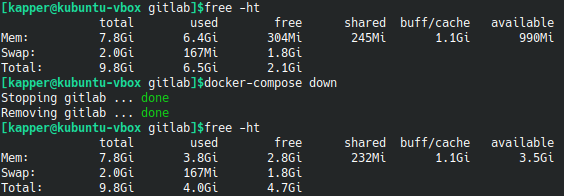](https://www.knoats.com/uploads/images/gallery/2020-06/image-1592333380358.png) We should note that though the actual usage seen here is only `2.6GB`, the basic requirement of `3.6GB` for *up to* 500 users is still valid. ### CPU Below, we can see the difference in CPU load seen within htop. This instance is running GitLab locally with no NGINX proxy running on the host itself. At the time of this test, there were only two users signed into the instance. **GitLab Running**\ [](https://www.knoats.com/uploads/images/gallery/2020-06/image-1592334204944.png) **GitLab Down**\ [](https://www.knoats.com/uploads/images/gallery/2020-06/image-1592334336227.png) ## Notable Features Some notable differences seen on a self hosted instance of GitLab ### Repository Creation When hosting your own GitLab instance, you are granted an extra option when creating a repository. This allows you to create repositories which are only available to users which are logged in. [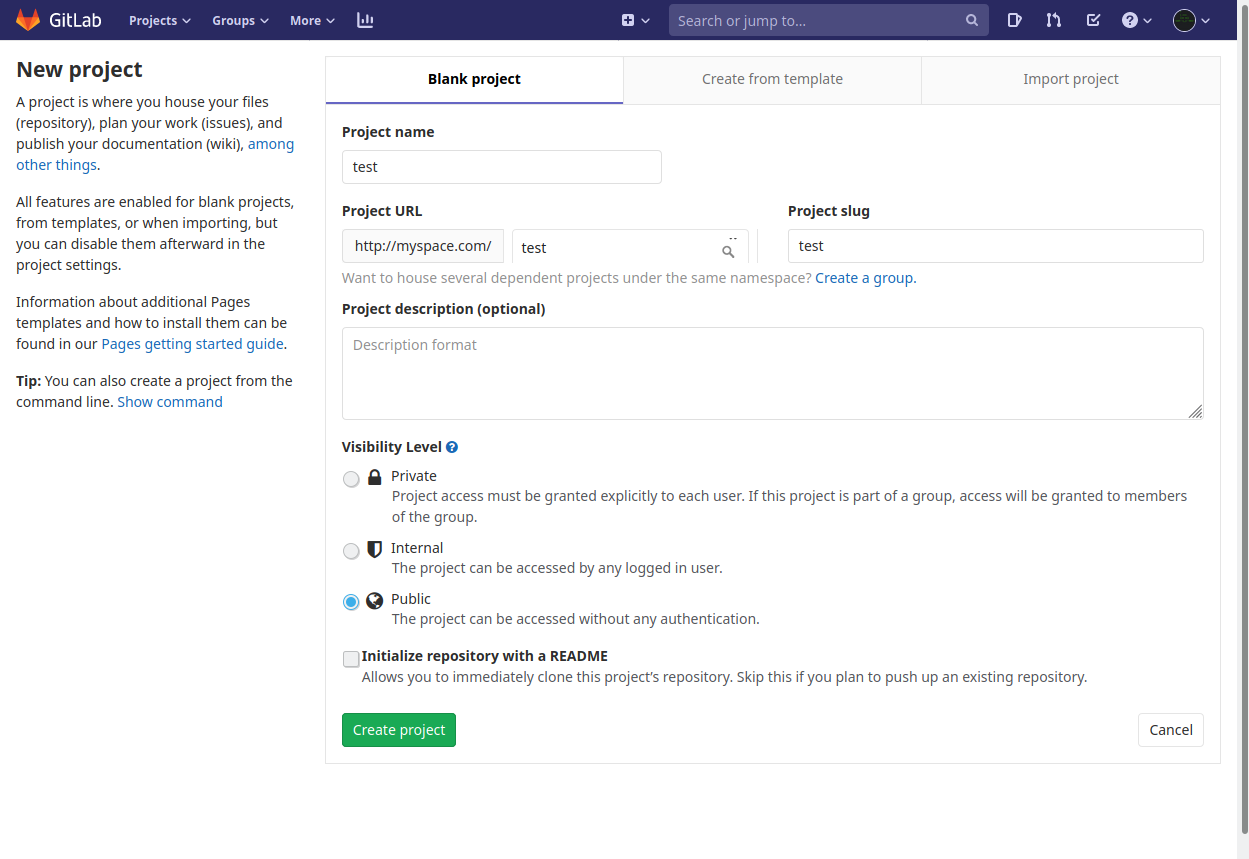](https://www.knoats.com/uploads/images/gallery/2020-06/image-1592337507595.png) ## GitLab Settings ### Health Check Endpoints GitLab provides some default endpoints to gather general status information from your instance. To see these, navigate to the `Admin Area` as an administrator and see the section below [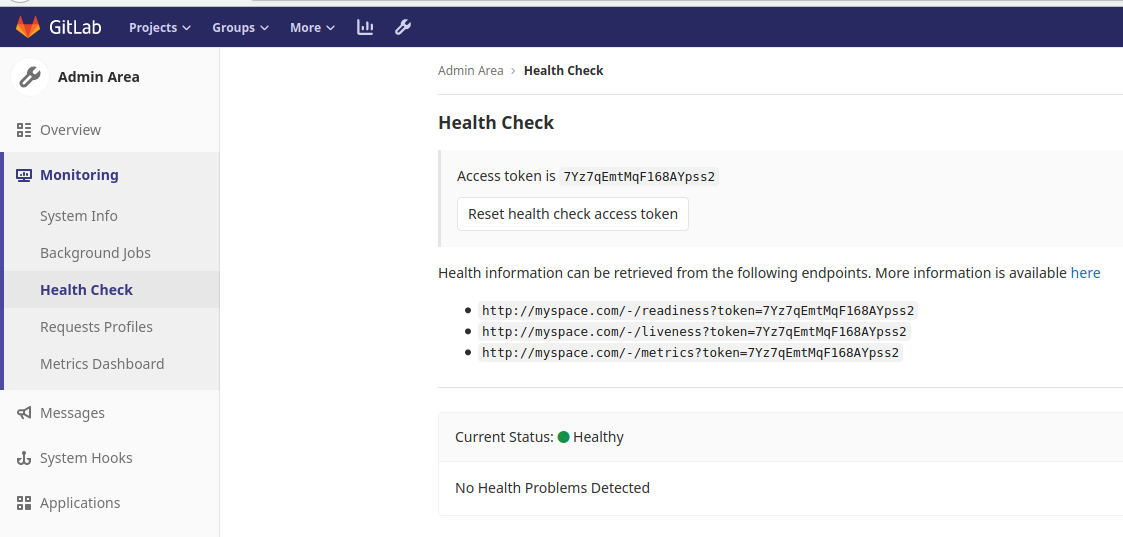](https://www.knoats.com/uploads/images/gallery/2020-06/image-1592331537937.png) Readiness example - [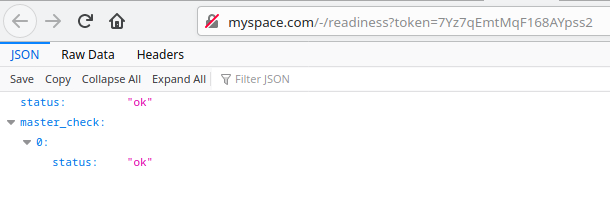](https://www.knoats.com/uploads/images/gallery/2020-06/image-1592331778086.png) Liveness example - [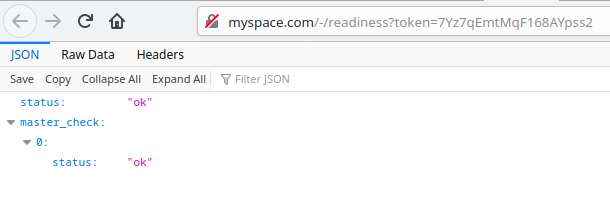](https://www.knoats.com/uploads/images/gallery/2020-06/image-1592331803022.png) Metrics example -The output here is huge, and this screenshot is only a very small amount of the information available. See this pastebin for the full output, which is nearly 3,000 lines long.
[](https://www.knoats.com/uploads/images/gallery/2020-06/image-1592331841029.png) ### Self Monitoring Go here and enable self monitoring to automatically create a production environment which can be monitored by Prometheus and then passed to Grafana through extra configuration later on. [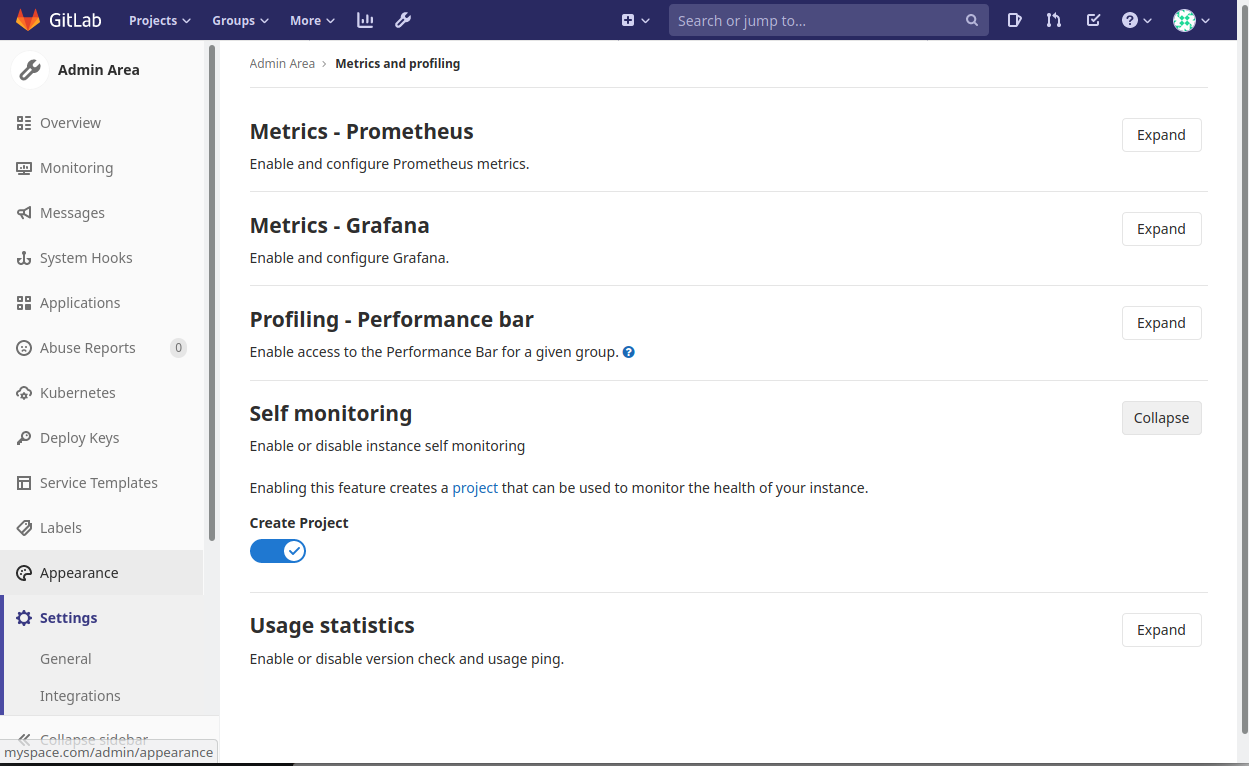](https://www.knoats.com/uploads/images/gallery/2020-06/image-1592336168544.png) [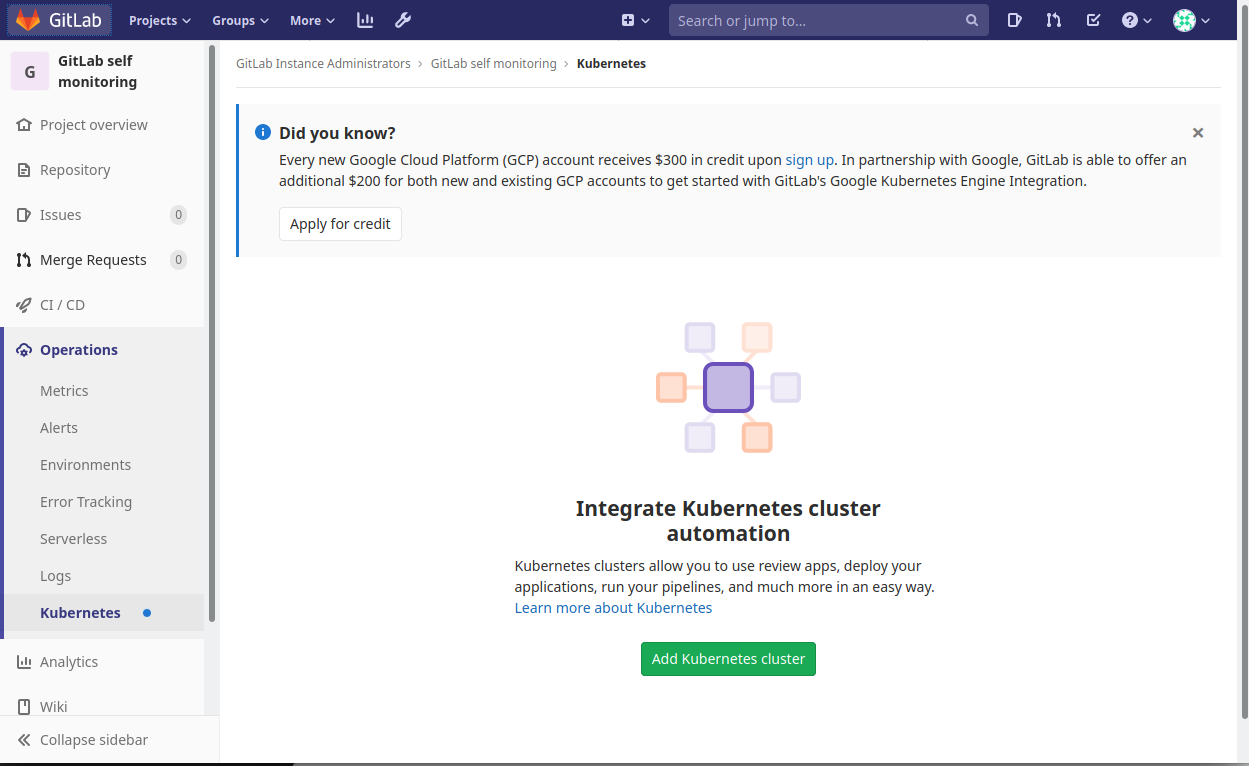](https://www.knoats.com/uploads/images/gallery/2020-06/image-1592336117414.png) Doing this prompts a notification with a campaign offer for free credit on the Google Cloud platform *and* an additional credit from GitLab for getting started with a self hosted instance. ### GitLab Applications WIP #### Grafana GitLab's Omnibus includes a Grafana that is configured with GitLab's builtin OAuth right out of the box if you are using any GitLab version beyond `12.0`. If you do face any issues, see the [Official Grafana OAuth Documentation](https://docs.gitlab.com/omnibus/settings/grafana.html#using-gitlab-as-an-oauth-provider) for more detailed information on configuring this manually. Visit `http://yourdomain.com/-/grafana/login/gitlab` to automatically link your GitLab account to a new Grafana user.You must link the root user account to this Grafana in order to see various pages and settings not available to normal users.
[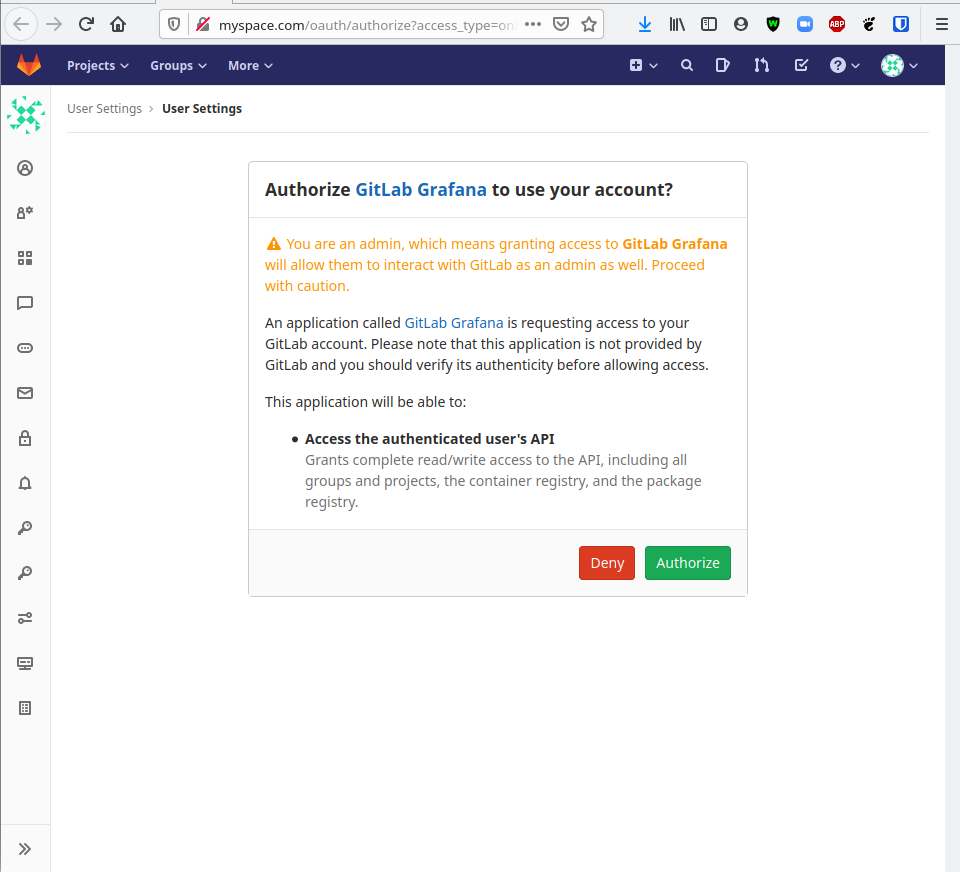](https://www.knoats.com/uploads/images/gallery/2020-06/image-1592327563175.png) By default, the GitLab Omnibus ships with the following Grafana dashboards configured [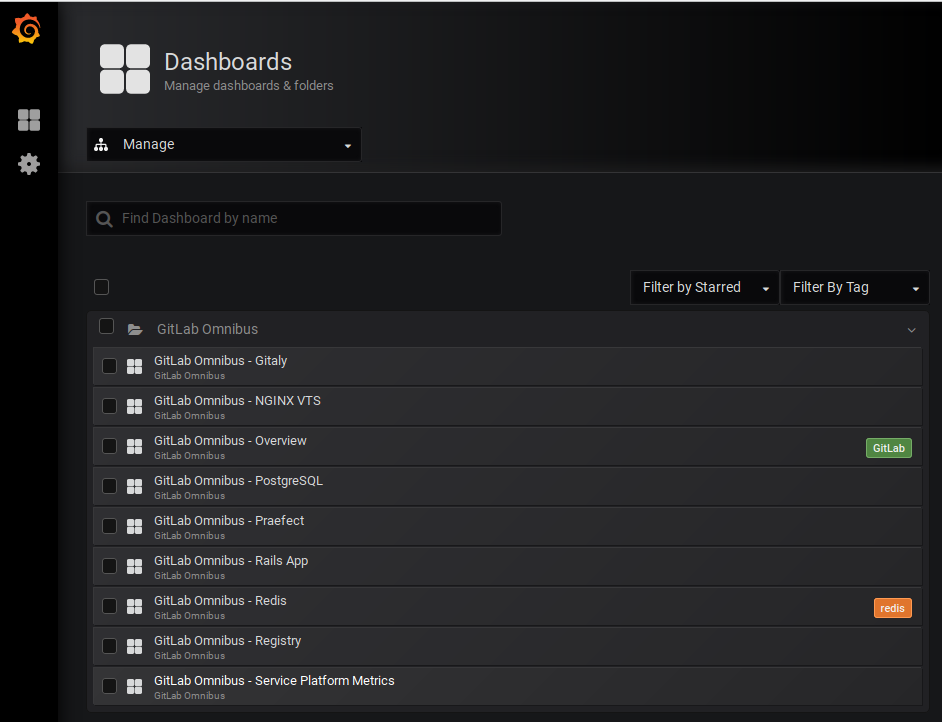](https://www.knoats.com/uploads/images/gallery/2020-06/image-1592328950310.png) A partial example of the NGINX dashboard [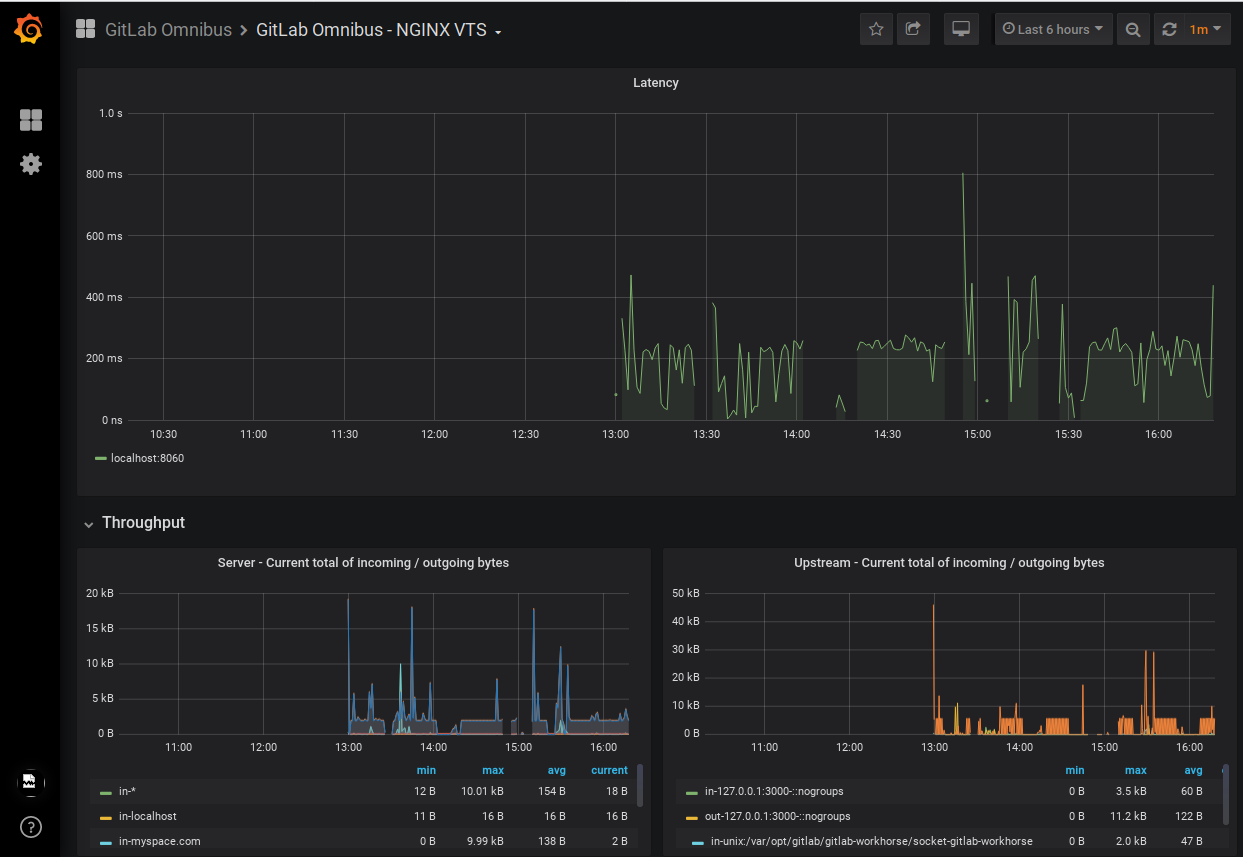](https://www.knoats.com/uploads/images/gallery/2020-06/image-1592338797428.png) ## GitLab Server Advanced Configurations To modify these files, which configure several back-end options for our GitLab instance, we need to have started our services so Docker can mount the container volumes with the files we need to edit. Run `docker-compose up -d` and check the directory you input for `$GITLAB_HOME` in your docker-compose.yml. After a few seconds, we should notice this directory contains some new configurations. ### gitlab.rb To regenerate the default configuration, remove or rename the `$GITLAB_HOME/config/gitlab.rb` and restart the container #### Mail Settings GitLab sends mail using Sendmail by default. General email configurations can be found in the `Email Settings` section of the `$GITLAB_HOME/config/gitlab.rb` configuration file. ``` ### Email Settings # gitlab_rails['gitlab_email_enabled'] = true # gitlab_rails['gitlab_email_from'] = 'example@example.com' # gitlab_rails['gitlab_email_display_name'] = 'Example' # gitlab_rails['gitlab_email_reply_to'] = 'noreply@example.com' # gitlab_rails['gitlab_email_subject_suffix'] = '' # gitlab_rails['gitlab_email_smime_enabled'] = false # gitlab_rails['gitlab_email_smime_key_file'] = '/etc/gitlab/ssl/gitlab_smime.key' # gitlab_rails['gitlab_email_smime_cert_file'] = '/etc/gitlab/ssl/gitlab_smime.crt' # gitlab_rails['gitlab_email_smime_ca_certs_file'] = '/etc/gitlab/ssl/gitlab_smime_cas.crt' ``` ##### SMTP If you want to use a SMTP server instead, you can configure this in the `GitLab email server settings` section of the `$GITLAB_HOME/config/gitlab.rb` configuration file. ``` ### GitLab email server settings ###! Docs: https://docs.gitlab.com/omnibus/settings/smtp.html ###! **Use smtp instead of sendmail/postfix.** # gitlab_rails['smtp_enable'] = true # gitlab_rails['smtp_address'] = "smtp.server" # gitlab_rails['smtp_port'] = 465 # gitlab_rails['smtp_user_name'] = "smtp user" # gitlab_rails['smtp_password'] = "smtp password" # gitlab_rails['smtp_domain'] = "example.com" # gitlab_rails['smtp_authentication'] = "login" # gitlab_rails['smtp_enable_starttls_auto'] = true # gitlab_rails['smtp_tls'] = false ###! **Can be: 'none', 'peer', 'client_once', 'fail_if_no_peer_cert'** ###! Docs: http://api.rubyonrails.org/classes/ActionMailer/Base.html # gitlab_rails['smtp_openssl_verify_mode'] = 'none' # gitlab_rails['smtp_ca_path'] = "/etc/ssl/certs" # gitlab_rails['smtp_ca_file'] = "/etc/ssl/certs/ca-certificates.crt" ``` ##### Incoming GitLab can handle incoming email based on various configurations. [Official Incoming Mail Documentation](http://gitlab.com/help/administration/incoming_email.md). This could enable features like responding to issue and merge requests via email. ##### Outgoing By default, GitLab sends no email to users upon registration. To enable this feature, sign into your instance as an adminsistrator and navigate to the `Admin Area`. Once there, go to the `General Settings` of your instance and scroll down to expand the section below [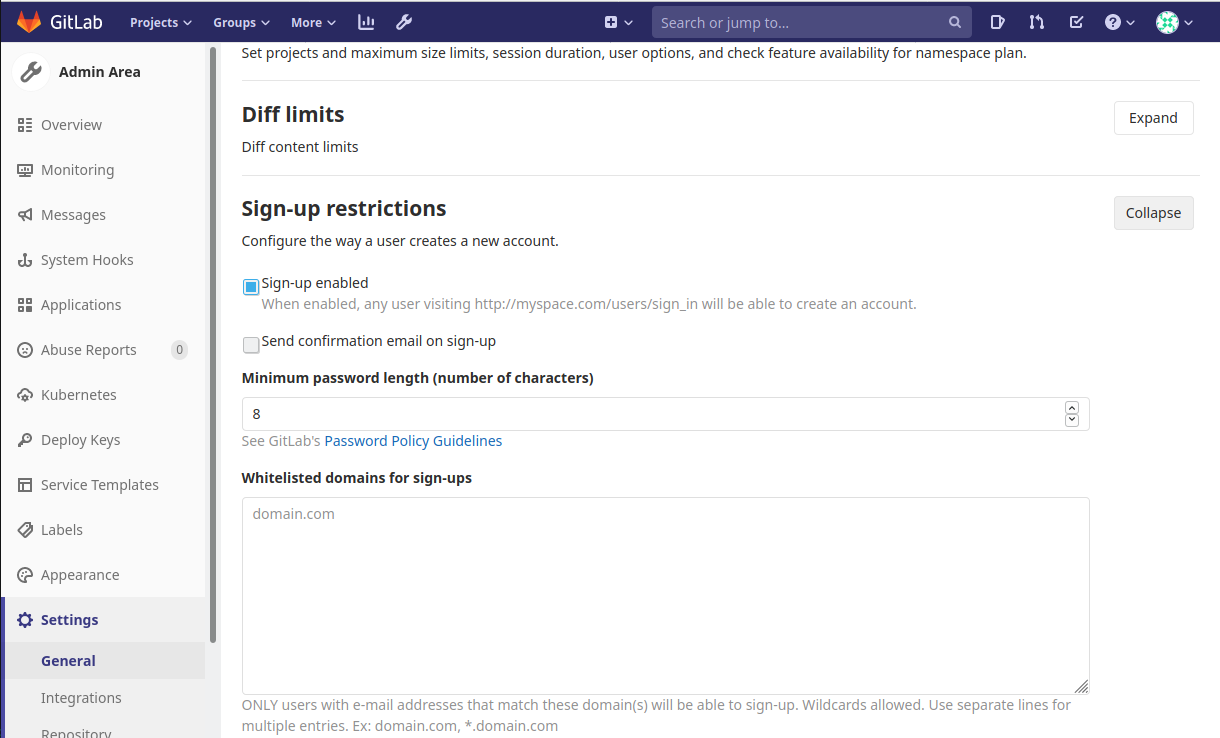](https://www.knoats.com/uploads/images/gallery/2020-06/image-1592330697315.png)