ESP32
Getting Started
While exploring my local network, I stumbled upon several devices named espressif, and after some searching online I found the ESP32 was the likely culprit. I've always been interested in hardware and have experience working with electrical circuits from 120-480 volts, but I have never identified a resistor or even considered purchasing a breadboard.
So, I bought a board on Amazon because it was fast shipping and I had a long weekend coming up. I won't share an Amazon link here for several reasons, but the exact model that I purchased was the ESP32-DevKitC V4 which comes with the ESP32-WROOM chip soldered on.
I love smart devices, that's how the ESP32 ended up on my local network. I tracked the espressif devices down to my cat's water and food bowls from Petlibro. So it's only natural that I'd like to use the ESP32 for some wifi controlled 'smart' task.
When the board first arrived, I tried out the Arduino IDE. It was fine for learning purposes, but it felt like the IDE was doing a lot for me without having the chance to really understand everything. Personally I (barely) prefer CLion, and I wanted to get back to the IDE that was familiar to me. More importantly, I wanted to work on the ESP32 without tethering myself to any IDE. I wanted the project to be completely stand-alone, and to document and install any dependencies manually. Using Sketches in the Arduino IDE wasn't going to get me there.
Enter the Espressif IoT Development Framework, or the ESP-IDF for short. This looks slightly intimidating at first, but if you're at all familiar with C programming you'll get along fine. Before we dive into the ESP-IDF, lets take a step back and gain our bearings.
Ecosystems
Typically the ESP32 examples recommended for beginners will be using the arduino-esp32 APIs - Espressif provides one such example called WiFiClient. These examples are also made available in the Arduino IDE's menus where you can create a new project (AKA a new sketch) based on this WiFiClient example. This example uses higher level C++ APIs than what you'll find in the ESP-IDF examples.
Why would Espressif, creators of the ESP32 and not the Arduino, want to support Arduino APIs? Simply because Arduinos are a popular point of entry for learning programming on microcontrollers, and supporting these APIs lowers the barrier of entry for ESP32 devices.
The ESP-IDF build system supports using those same Arduino APIs via an IDF component configuration marking arduino-esp32 as a dependency. See the Espressif GitHub example here, paired with the IDF component documentation from espressif.
Development Methods
There are different ways to organize ESP32 projects, the sections below outline the formats I've explored.
Arduino IDE
The Arduino IDE can be used to load sketches easily and flash to your ESP32.
This is easiest for a beginner, but you will have to use the Arudino IDE.
unzip arduino-ide_2.3.4_Linux_64bit.zip -d ./arduino-ide_2.3.4
cd arduino-ide_2.3.4/
sudo chown root:root /home/shaun/Downloads/arduino-ide_2.3.4/chrome-sandbox
# Maybe
sudo chmod 4755 /home/shaun/Downloads/arduino-ide_2.3.4/chrome-sandbox

# For permissions to access USB devices
newgrp uucp
newgrp dialout

# Start IDE
./arduino-ide
ESP-IDF
In the sections below, we will use the simpler arduino-esp32 APIs and examples to get familiar with deploying to the ESP32 using the ESP-IDF. This example isn't going to do very much interesting other than validate our build system. If we are successful, it will simply write some output to the serial monitor. No lights, buttons, sensors, wifi, etc.
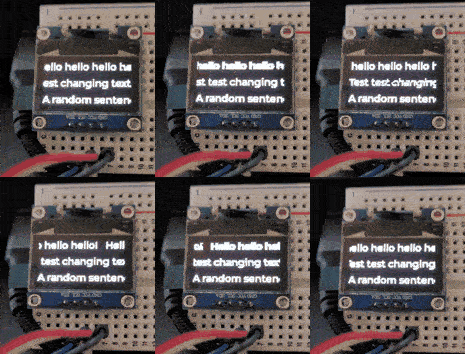
In a future post, I'll look at drawing to an LCD display using the I2C communication protocol with the lower-level ESP APIs instead, and drop the dependency for arduino-esp32 entirely.
Installing
First we need to install the ESP-IDF following GitHub instructions on ubuntu 24.04
WARNING: If you are using arduino-esp32 APIs mentioned above, pay attention to arduino-esp32 releases for the latest supported ESP-IDF version. The latest ESP-IDF version is likely not currently supported by arduino-esp32. At the time of this writing, the latest arduino-esp32 release v3.1.1 is based on ESP-IDF 5.3.2, so below we checkout the v5.3.2 branch of github.com/espressif/esp-idf.git.
Install the prerequisites required for the ESP-IDF
sudo apt-get install -y git wget flex bison gperf python3 python3-pip python3-venv cmake ninja-build ccache libffi-dev libssl-dev dfu-util libusb-1.0-0
Clone the ESP-IDF using the v5.3.2 branch and install. There will be a lot of output produced from these commands that is not shown below.
git clone -b v5.3.2 git@github.com:espressif/esp-idf.git
cd esp-idf
./install.sh
. ./export.sh
Switching Versions
To switch versions after previously installing the ESP-IDF
cd /path/to/esp-idf
git checkout v5.3.2
git submodule update --init --recursive
./install.sh
. ./export.sh
If everything worked correctly, you should end up with this final output in your terminal -
Done! You can now compile ESP-IDF projects.
Go to the project directory and run:

  idf.py build
Project Example
First set up your environment to use ESP-IDF tools and to have the correct exports required for building with CMake. Unfortunately the way this is done is by sourcing a script in the ESP-IDF repository, after you've installed the ESP-IDf.
source /path/to/esp-idf/export.sh
You should now have the idf.py tool available in your shell.
idf.py

Usage: idf.py [OPTIONS] COMMAND1 [ARGS]... [COMMAND2 [ARGS]...]...

  ESP-IDF CLI build management tool. For commands that are not known to idf.py an attempt to execute
  it as a build system target will be made. Selected target: None
To make initializing my environment for using the ESP-IDF simpler, I threw an alias in my .bash_aliases file. I prefix all my alias commands with a comma. It looks strange, but it clearly separates an alias from a typical command and I think that's pretty cool.
echo "alias ,idf='source $HOME/Code/Clones/esp-idf/export.sh'" >> ~/.bash_aliases
So next time when I want to work on ESP things I can just run ,idf in a terminal to initialize my environment. From here we can use CMake to create an ESP-IDF project, and even flash to our device or open a serial monitor.
CMake
Setting up the project in CMake is fairly simple. For more information about build system see ESP-IDF - Build System
mkdir esp-example
cd esp-example
vim CMakeLists.txt
cmake_minimum_required(VERSION 3.26)

include($ENV{IDF_PATH}/tools/cmake/project.cmake)

project(
    #[[NAME]]   esp-idf-arduino
    VERSION     0.1
    DESCRIPTION "Example ESP-IDF cmake project"
    LANGUAGES   CXX
)

# For writing pure cmake components, see the documentation
# https://docs.espressif.com/projects/esp-idf/en/stable/esp32/api-guides/build-system.html#writing-pure-cmake-components
idf_build_set_property(COMPILE_OPTIONS "-Wno-error" APPEND)
And then create our main/ directory where we'll store our source code and write a quick CMakeLists.txt
mkdir main
vim main/CMakeLists.txt
idf_component_register(
    SRCS "main.cpp"
    INCLUDE_DIRS "."
)
The project structure now looks like the following file tree. We'll configure and build with cmake later, once we set up our dependencies in the ESP-IDF.
esp-example/
├── CMakeLists.txt
└── main
    └── CMakeLists.txt
Source Code
Now we write the source code for our application. I hope you're prepared, because it's a lot.
cd esp-example
vim main/main.cpp
#include "Arduino.h"

void setup() {
  Serial.begin(115200);
}

void loop() {
  Serial.println("Hello world!");
  delay(1000);
}
This code simply attaches to the serial monitor at 115200 baud and prints Hello world! every second. That's it, the project is completed - we have our cmake lists set up and our source code in place. Next we will configure the project with cmake using the idf.py tool.
Dependencies
Now that we have the tools to configure and build ESP-IDF projects with cmake, we can look at creating our first project. The example code that I'm going to build here is available at git.shaunreed.com/shaunrd0/klips. The commands below will not clone this repository, but instead set up the project as I did when creating it.
First set the build target to the ESP32 device. This tells the ESP-IDF which microcontroller we are working with.
idf.py set-target esp32
Notice that the idf.py command created the sdkconfig file in our current directory, and produced a build/ directory -
esp-example/
├── build/
├── CMakeLists.txt
├── main
│   ├── CMakeLists.txt
│   └── main.cpp
└── sdkconfig
Next we need to add a dependency for the arduino-esp32 APIs. These simpler APIs will be a nice way to test our build system and get familiar with the tools.
IMPORTANT: We set the 3.1.1 version because the release is compatible with ESP-IDF v5.3.2 we installed in the first step.
# https://github.com/espressif/arduino-esp32/releases/tag/3.1.1
idf.py add-dependency "espressif/arduino-esp32^3.1.1"

Executing action: add-dependency
NOTICE: Created "/home/shaun/Code/esp-example/main/idf_component.yml"
NOTICE: Successfully added dependency "espressif/arduino-esp32": "^3.1.1" to component "main"
NOTICE: If you want to make additional changes to the manifest file at path /home/shaun/Code/esp-example/main/idf_component.yml manually, please refer to the documentation: https://docs.espressif.com/projects/idf-component-manager/en/latest/reference/manifest_file.html
After the idf.py commands above, we have a new idf_component.yml file -
esp-example/
├── build/
├── CMakeLists.txt
├── main
│   ├── CMakeLists.txt
│   ├── idf_component.yml
│   └── main.cpp
└── sdkconfig
The contents should look like this, note the arduino-esp32 dependency is listed on the last line
## IDF Component Manager Manifest File
dependencies:
  ## Required IDF version
  idf:
    version: '>=4.1.0'
  # # Put list of dependencies here
  # # For components maintained by Espressif:
  # component: "~1.0.0"
  # # For 3rd party components:
  # username/component: ">=1.0.0,<2.0.0"
  # username2/component2:
  #   version: "~1.0.0"
  #   # For transient dependencies `public` flag can be set.
  #   # `public` flag doesn't have an effect dependencies of the `main` component.
  #   # All dependencies of `main` are public by default.
  #   public: true
  espressif/arduino-esp32: ^3.1.1
Now we're ready to configure the project and prepare to flash to our device. These commands will automatically pull in the arduino-esp32 dependency into our project directory so it may take some time to complete.
cmake -B build
If you're lucky after some output from cmake you'll get the following error
-- Project sdkconfig file /home/shaun/Code/test-esp/sdkconfig
-- Compiler supported targets: xtensa-esp-elf
-- App "esp-idf-arduino" version: 0.1
-- Adding linker script /home/shaun/Code/test-esp/build/esp-idf/esp_system/ld/memory.ld
-- Adding linker script /home/shaun/Code/test-esp/build/esp-idf/esp_system/ld/sections.ld.in
-- Adding linker script /home/shaun/Code/Clones/esp-idf/components/esp_rom/esp32/ld/esp32.rom.ld
-- Adding linker script /home/shaun/Code/Clones/esp-idf/components/esp_rom/esp32/ld/esp32.rom.api.ld
-- Adding linker script /home/shaun/Code/Clones/esp-idf/components/esp_rom/esp32/ld/esp32.rom.libgcc.ld
-- Adding linker script /home/shaun/Code/Clones/esp-idf/components/esp_rom/esp32/ld/esp32.rom.newlib-data.ld
-- Adding linker script /home/shaun/Code/Clones/esp-idf/components/esp_rom/esp32/ld/esp32.rom.syscalls.ld
-- Adding linker script /home/shaun/Code/Clones/esp-idf/components/esp_rom/esp32/ld/esp32.rom.newlib-funcs.ld
-- Adding linker script /home/shaun/Code/Clones/esp-idf/components/soc/esp32/ld/esp32.peripherals.ld
-- DEBUG: Use esp-modbus component folder: /home/shaun/Code/test-esp/managed_components/espressif__esp-modbus.
-- git rev-parse returned 'fatal: not a git repository (or any of the parent directories): .git'
ESP Insights Project commit: HEAD-HASH-NOTFOUND
-- git rev-parse returned 'fatal: not a git repository (or any of the parent directories): .git'
ESP RainMaker Project commit: HEAD-HASH-NOTFOUND

CMake Error at managed_components/espressif__arduino-esp32/CMakeLists.txt:371 (message):
  esp32-arduino requires CONFIG_FREERTOS_HZ=1000 (currently 100)
Run the following sed command to fix it. This just modifies a value that we could have probably tracked down in the idf.py menuconfig interface, but that doesn't sound like a good time.
sed -i -e 's/CONFIG_FREERTOS_HZ=100/CONFIG_FREERTOS_HZ=1000/' sdkconfig
Now rerun the cmake command to configure the project and it should complete normally.
cmake -B build
Finally, we can build the project
cmake --build build
We'll hit this error, which was confusing at first for me because I wasn't familiar with the differences between app_main() and loop() / setup()
/home/shaun/.espressif/tools/xtensa-esp-elf/esp-13.2.0_20240530/xtensa-esp-elf/bin/../lib/gcc/xtensa-esp-elf/13.2.0/../../../../xtensa-esp-elf/bin/ld: esp-idf/freertos/libfreertos.a(app_startup.c.obj):(.literal.main_task+0x24): undefined reference to `app_main'
/home/shaun/.espressif/tools/xtensa-esp-elf/esp-13.2.0_20240530/xtensa-esp-elf/bin/../lib/gcc/xtensa-esp-elf/13.2.0/../../../../xtensa-esp-elf/bin/ld: esp-idf/freertos/libfreertos.a(app_startup.c.obj): in function `main_task':
/home/shaun/Code/Clones/esp-idf/components/freertos/app_startup.c:199:(.text.main_task+0x99): undefined reference to `app_main'
collect2: error: ld returned 1 exit status
ninja: build stopped: subcommand failed.
The build failed because we are using the ESP-IDF which expects the app_main() convention. We can use the Arudino style by setting some configurations in the ESP-IDF.
We need to automatically start Arduino under the ESP-IDF so that we can make use of the Arduino loop() and setup() functions in our example. You can also use the ESP-IDF app_main() function if preferred, see the examples below for differences between the two.
ESP-IDF example using app_main()
ESP-IDF example using Arduino loop() and setup()
You can alternatively do this in the TUI tool idf.py menuconfig, but here is a bash command to append the same configuration to the sdkconfig in your project directory that was generated by the ESP-IDF.
echo "CONFIG_AUTOSTART_ARDUINO=y" >> sdkconfig
We can once again build the project, only this this time it won't fail to build.
cmake --build build
If everything completed normally, the build output will end with
Project build complete. To flash, run:
 idf.py flash
or
 idf.py -p PORT flash
or
 python -m esptool --chip esp32 -b 460800 --before default_reset --after hard_reset write_flash --flash_mode dio --flash_size 2MB --flash_freq 40m 0x1000 build/bootloader/bootloader.bin 0x8000 build/partition_table/partition-table.bin 0x10000 build/main.bin
or from the "/home/shaun/Code/klips/esp/cpp/04_esp-idf-arduino/build" directory
 python -m esptool --chip esp32 -b 460800 --before default_reset --after hard_reset write_flash "@flash_args"
In the next and final section, we'll look at flashing to the ESP32 and validating the program is behaving correctly using the serial monitor.
Flashing
Find the device for the ESP32. Mine is /dev/ttyUSB0 in the output below.
$ ls /dev/tty*
/dev/tty    /dev/tty16  /dev/tty24  /dev/tty32  /dev/tty40  /dev/tty49  /dev/tty57  /dev/tty8       /dev/ttyS14  /dev/ttyS22  /dev/ttyS30
/dev/tty0   /dev/tty17  /dev/tty25  /dev/tty33  /dev/tty41  /dev/tty5   /dev/tty58  /dev/tty9       /dev/ttyS15  /dev/ttyS23  /dev/ttyS31
/dev/tty1   /dev/tty18  /dev/tty26  /dev/tty34  /dev/tty42  /dev/tty50  /dev/tty59  /dev/ttyprintk  /dev/ttyS16  /dev/ttyS24  /dev/ttyS4
/dev/tty10  /dev/tty19  /dev/tty27  /dev/tty35  /dev/tty43  /dev/tty51  /dev/tty6   /dev/ttyS0      /dev/ttyS17  /dev/ttyS25  /dev/ttyS5
/dev/tty11  /dev/tty2   /dev/tty28  /dev/tty36  /dev/tty44  /dev/tty52  /dev/tty60  /dev/ttyS1      /dev/ttyS18  /dev/ttyS26  /dev/ttyS6
/dev/tty12  /dev/tty20  /dev/tty29  /dev/tty37  /dev/tty45  /dev/tty53  /dev/tty61  /dev/ttyS10     /dev/ttyS19  /dev/ttyS27  /dev/ttyS7
/dev/tty13  /dev/tty21  /dev/tty3   /dev/tty38  /dev/tty46  /dev/tty54  /dev/tty62  /dev/ttyS11     /dev/ttyS2   /dev/ttyS28  /dev/ttyS8
/dev/tty14  /dev/tty22  /dev/tty30  /dev/tty39  /dev/tty47  /dev/tty55  /dev/tty63  /dev/ttyS12     /dev/ttyS20  /dev/ttyS29  /dev/ttyS9
/dev/tty15  /dev/tty23  /dev/tty31  /dev/tty4   /dev/tty48  /dev/tty56  /dev/tty7   /dev/ttyS13     /dev/ttyS21  /dev/ttyS3   /dev/ttyUSB0
To flash run the following commands.
# Manually selecting port with above output
# Baud rate matters: https://docs.espressif.com/projects/esp-idf/en/stable/esp32/get-started/establish-serial-connection.html#connect-esp32-to-pc
idf.py -p /dev/ttyUSB0 -b 115200 flash

# Let esp-idf automatically detect port and baud rate
idf.py flash
To open serial monitor via the commandline -
idf.py monitor -b 115200
Or in CLion the Serial Monitor extension works well.
If everything is working correctly, you should see Hello world! printed to the serial monitor repeatedly.
See the full source code for this project on gitea
Other Links
- lafvintech/Basic-Starter-Kit-for-ESP32-S3-WROOM
- espressif/esp-idf
- espressif/arduino-esp32
- basic-starter-kit-for-esp32-s3-wroom.readthedocs
- esp32 forum
- esp32 datasheet
- Migrating from API 2.X to 3.0
- lafvintech tutorial starter kits (paid)
- this board
- tutorials specific to this board are here
Rust
Rust ESP Book was referenced for most of this writing.
Some context was addded for deeper understanding of high-level requirements of a rust esp project.
Project Types
There are two project types to consider when creating esp32 rust projects. It mostly depends on your hardware or application requirements, but there may be other factors to consider as well.
Using std
These projects include Rust's standard library and depend on the ESP-IDF framework as an underlying OS.
They support features like heap allocation, file systems, networking, and standard error handling.
Because of the range of features and implementations available in std, this is better for applications that have more complex logic and more resources available to run.
While probably not technically required in all applications, you could expect an application like this to require AC power connection to run.
Using no std
no_std projects exclude the standard library and operate without an operating system.
They use only the Rust core library and sometimes the alloc crate for heap-like behavior.
This approach is ideal for low-level, resource-constrained, or timing-critical applications where full control over the hardware is required.
For example this would be best for an application that is going to run on battery power with tight resources.
Dependencies
There are a few things we'll need to install before we can work on ESP projects with rust. The following sections will cover each required step.
Installing espup
This section was in RISCV and XTensa requirements in the docs, but from my attempts locally I could not proceed even with ESP32 without it.
This tool will install the needed libraries for working with ESP32 microcontrollers with Rust.
# This is required if you are working with esp-idf std projects. If using no std this is not required.
cargo install ldproxy

# This is required for all applications.
cargo install espup --locked
Running espup will give us this output that is important to read.
espup install
[info]: Installing the Espressif Rust ecosystem
[info]: Checking Rust installation
[info]: Installing Xtensa Rust 1.87.0.0 toolchain
[info]: Installing RISC-V Rust targets ('riscv32imc-unknown-none-elf', 'riscv32imac-unknown-none-elf' and 'riscv32imafc-unknown-none-elf') for 'stable' toolchain
[info]: Installing Xtensa LLVM
[info]: Installing GCC (xtensa-esp-elf)
[info]: Creating symlink between '/home/shaun/.rustup/toolchains/esp/xtensa-esp32-elf-clang/esp-19.1.2_20250225/esp-clang/lib' and '/home/shaun/.espup/esp-clang'
[info]: All downloads complete
[info]: Installing 'rust' component for Xtensa Rust toolchain
[info]: Installing 'rust-src' component for Xtensa Rust toolchain
[info]: Installation successfully completed!

        To get started, you need to set up some environment variables by running: '. /home/shaun/export-esp.sh'
        This step must be done every time you open a new terminal.
            See other methods for setting the environment in https://esp-rs.github.io/book/installation/riscv-and-xtensa.html#3-set-up-the-environment-variables
So every time we want to work on esp-idf things with rust we need to run this script to set some variables.
. ~/export-esp.sh
Project Generators
This section covers using generators to create a new ESP32 rust project. There are two options, so the two sections that follow will describe each one. You only need to pick one.
Installing cargo-generate
Installed with
cargo install cargo-generate
This is more configurable and can be used with cargo-generate.toml configurations stored on a remote git repository. This is not just for ESP project but can be used with a range of rust projects. For example to use a cargo generate project template for esp-idf (using std) we can run this command
cargo generate --git https://github.com/esp-rs/esp-idf-template.git --name esp-idf-rust-std -d mcu=esp32 -d std=true
To generate a project with no std
cargo generate --git https://github.com/esp-rs/esp-idf-template.git --name esp-idf-rust-no-std -d mcu=esp32 -d std=false
Installing esp-generate
Installed with
cargo install esp-generate
To generate a ESP32 rust project using std run the following command
esp-generate new esp-idf-rust-std --mcu esp32 --std
To generate a project with no std
esp-generate new esp-idf-rust-no-std --mcu esp32 --no-std
Build
Regardless of the method you chose for generating your project, your build steps will be the same.
Don't forget to source the script espup told us we needed when we were installing dependencies.
cd esp-rust-project

# Export the script that espup informed us we needed to build esp rust projects before you build
. ~/export-esp.sh
cargo build
Now we've built the project, and we just need to flash it to an ESP32 device to test it.
Flash
Install espflash and configure your user to the required dialout group.
cargo install espflash
sudo usermod -aG dialout $USER
newgrp dialout
Pay careful attention to the path passed to espflash below. If you are using a different microcontroller or project name it will need to be changed to match.
espflash flash target/xtensa-esp32-espidf/debug/esp-idf-rust-std
You can also just use cargo to flash to the device automatically. If you have more than one device this may not work.
cargo run
    Finished `dev` profile [optimized + debuginfo] target(s) in 0.07s
     Running `espflash flash --monitor target/xtensa-esp32-espidf/debug/esp-idf-rust-std`
[2025-07-06T16:56:15Z INFO ] Serial port: '/dev/ttyUSB0'
[2025-07-06T16:56:15Z INFO ] Connecting...
[2025-07-06T16:56:15Z INFO ] Using flash stub
Chip type:         esp32 (revision v3.1)
Crystal frequency: 40 MHz
Flash size:        4MB
Features:          WiFi, BT, Dual Core, 240MHz, VRef calibration in efuse, Coding Scheme None
MAC address:       3c:8a:1f:0c:53:60
App/part. size:    561,504/4,128,768 bytes, 13.60%
...
Then open the serial monitor for your device. If there is only one detected this will use it automatically, otherwise you will receive a prompt to select the device. Below my device was automatically selected, so what you see is the connection being established.
espflash monitor
[2025-07-06T16:24:40Z INFO ] Serial port: '/dev/ttyUSB0'
[2025-07-06T16:24:40Z INFO ] Connecting...
[2025-07-06T16:24:40Z INFO ] Using flash stub
Commands:
    CTRL+R    Reset chip
    CTRL+C    Exit
Press CTRL+R to reset the chip and you'll see the Hello, world! output in the template project we used for generation
rst:0x1 (POWERON_RESET),boot:0x13 (SPI_FAST_FLASH_BOOT)
configsip: 0, SPIWP:0xee
clk_drv:0x00,q_drv:0x00,d_drv:0x00,cs0_drv:0x00,hd_drv:0x00,wp_drv:0x00
mode:DIO, clock div:2
load:0x3fff0030,len:6276
load:0x40078000,len:15748
load:0x40080400,len:4
ho 8 tail 4 room 4
load:0x40080404,len:3860
entry 0x4008063c
I (31) boot: ESP-IDF v5.4.1-426-g3ad36321ea 2nd stage bootloader
I (31) boot: compile time Apr 24 2025 15:52:44
I (31) boot: Multicore bootloader
I (34) boot: chip revision: v3.1
I (37) boot.esp32: SPI Speed      : 40MHz
I (40) boot.esp32: SPI Mode       : DIO
I (44) boot.esp32: SPI Flash Size : 4MB
I (48) boot: Enabling RNG early entropy source...
I (52) boot: Partition Table:
I (55) boot: ## Label            Usage          Type ST Offset   Length
I (61) boot:  0 nvs              WiFi data        01 02 00009000 00006000
I (67) boot:  1 phy_init         RF data          01 01 0000f000 00001000
I (74) boot:  2 factory          factory app      00 00 00010000 003f0000
I (81) boot: End of partition table
I (84) esp_image: segment 0: paddr=00010020 vaddr=3f400020 size=27dcch (163276) map
I (147) esp_image: segment 1: paddr=00037df4 vaddr=3ffb0000 size=026a8h (  9896) load
I (151) esp_image: segment 2: paddr=0003a4a4 vaddr=40080000 size=05b74h ( 23412) load
I (160) esp_image: segment 3: paddr=00040020 vaddr=400d0020 size=4e97ch (321916) map
I (271) esp_image: segment 4: paddr=0008e9a4 vaddr=40085b74 size=05a5ch ( 23132) load
I (285) boot: Loaded app from partition at offset 0x10000
I (285) boot: Disabling RNG early entropy source...
I (295) cpu_start: Multicore app
I (304) cpu_start: Pro cpu start user code
I (304) cpu_start: cpu freq: 160000000 Hz
I (304) cpu_start: Application information:
I (307) cpu_start: Project name:     libespidf
I (312) cpu_start: App version:      1
I (317) cpu_start: Compile time:     Jul  6 2025 11:41:07
I (323) cpu_start: ELF file SHA256:  000000000...
I (328) cpu_start: ESP-IDF:          v5.2.3
I (333) cpu_start: Min chip rev:     v0.0
I (338) cpu_start: Max chip rev:     v3.99
I (342) cpu_start: Chip rev:         v3.1
I (347) heap_init: Initializing. RAM available for dynamic allocation:
I (355) heap_init: At 3FFAE6E0 len 00001920 (6 KiB): DRAM
I (360) heap_init: At 3FFB3018 len 0002CFE8 (179 KiB): DRAM
I (367) heap_init: At 3FFE0440 len 00003AE0 (14 KiB): D/IRAM
I (373) heap_init: At 3FFE4350 len 0001BCB0 (111 KiB): D/IRAM
I (380) heap_init: At 4008B5D0 len 00014A30 (82 KiB): IRAM
I (387) spi_flash: detected chip: generic
I (390) spi_flash: flash io: dio
W (395) pcnt(legacy): legacy driver is deprecated, please migrate to `driver/pulse_cnt.h`
W (403) i2c: This driver is an old driver, please migrate your application code to adapt `driver/i2c_master.h`
W (414) timer_group: legacy driver is deprecated, please migrate to `driver/gptimer.h`
I (423) main_task: Started on CPU0
I (433) main_task: Calling app_main()
I (433) esp_idf_rust_std: Hello, world!