# New Input System
### Setup
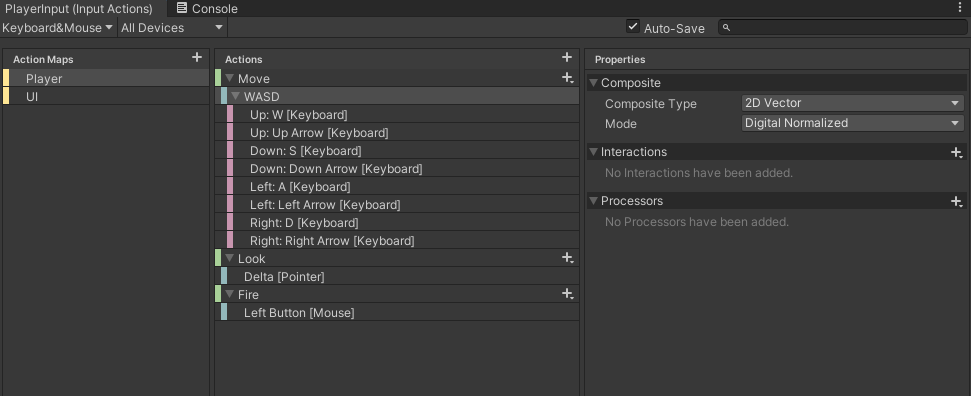
Using the default configuration for a keyboard&mouse / Gamepad `Input Actions` asset in unity, we can implement universal controls given various input devices.
[](https://knoats.com/uploads/images/gallery/2021-04/image-1618853283926.png)
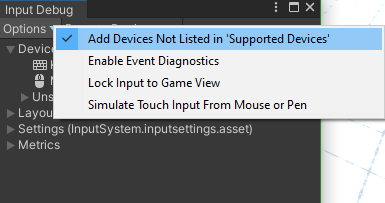
Issues getting an input device to work? Click Window->Analysis->Input Debugger and at the top-left of the new window select Options->Add Devices Not Listed in 'Supported Devices' and any input device that was not previously working should now be passing input to unity.
This was a weird bug for me to figure out, so I thought it was worth a mention. For me, I had to do this in order to get Unity to accept input from my Corsair gaming mouse. I searched up a lot of information on this new input system thinking I was using it wrong, and later found that my mouse was not passing input to unity and my code was correct.
[](https://knoats.com/uploads/images/gallery/2021-04/image-1618853641994.png)
---
### Use
We can call a specific function from a specific component
Using PlayerInput component->Behavior->Invoke Unity Events -
```C#
Rigidbody playerRigidbody;
public PlayerControls controls;
Vector2 playerVelocity;
public float playerSpeed = 5.0f;
void Awake() {
playerRigidbody = GetComponent();
controls = new PlayerControls();
}
void OnEnable() {
controls.Player.Enable();
}
void OnDisable() {
controls.Player.Disable();
}
public void OnMove(InputAction.CallbackContext context) {
print("Moving: " + context.ReadValue());
playerVelocity = context.ReadValue();
}
public void OnLook(InputAction.CallbackContext context) {
print("Look: " + context.ReadValue());
}
public void OnFire(InputAction.CallbackContext context) {
print("Bang");
}
void Update()
{
playerRigidbody.position += new Vector3(playerVelocity.x * Time.deltaTime * playerSpeed,
0,
playerVelocity.y * Time.deltaTime * playerSpeed);
}
```
Or we can let Unity call functions defined using the naming convention `void On\[ActionName\](InputValue value)`
Using PlayerInput component->Behavior->Send Messages -
```C#
Rigidbody playerRigidbody;
public PlayerControls controls;
Vector2 playerVelocity;
public float playerSpeed = 5.0f;
void Awake() {
playerRigidbody = GetComponent();
controls = new PlayerControls();
}
void OnEnable() {
controls.Player.Enable();
}
void OnDisable() {
controls.Player.Disable();
}
public void OnMove(InputValue value) {
playerVelocity = value.Get();
print("Moving: " + value.Get());
}
public void OnMove(InputValue value) {
playerVelocity = value.Get();
print("Moving: " + value.Get());
}
void Update()
{
playerRigidbody.position += new Vector3(playerVelocity.x * Time.deltaTime * playerSpeed,
0,
playerVelocity.y * Time.deltaTime * playerSpeed);
}
```
Broadcast messages is the same as Send Messages, except broadcasting invokes the same methods on all child objects who have a component with function definitions that match this naming convention.